 Claude
 Perplexity

Google Postmaster Tools: Setup, Dashboards and Fixes
Google Postmaster Tools shows how Gmail sees your mail. Learn how to set it up, what each dashboard means, why it shows no data and what to fix.
TL;DR: Google Postmaster Tools is a free Google dashboard that shows how Gmail sees the mail you send: your spam complaint rate, authentication results, delivery errors, encryption, and whether you meet Gmail's sender requirements. To set it up, add your sending domain at postmaster.google.com and verify it with a DNS TXT or CNAME record.
Updated November 15, 2026, from Google’s Postmaster Tools help pages.
Google Postmaster Tools is a free dashboard from Google that shows how Gmail handles mail from your domain. It reports the share of your mail that Gmail users mark as spam, how much of it passes SPF, DKIM and DMARC, which messages Gmail rejected or delayed and why, and whether your domain meets Gmail’s requirements for senders. It only covers mail sent to Gmail accounts, but for most senders that’s the largest single mailbox provider on their list.
If you send more than about 5,000 messages a day to Gmail, it’s effectively required: Gmail’s bulk-sender rules are judged on the spam rate Postmaster Tools reports, and it’s the only place Google shows you that number.
What Google Postmaster Tools shows you
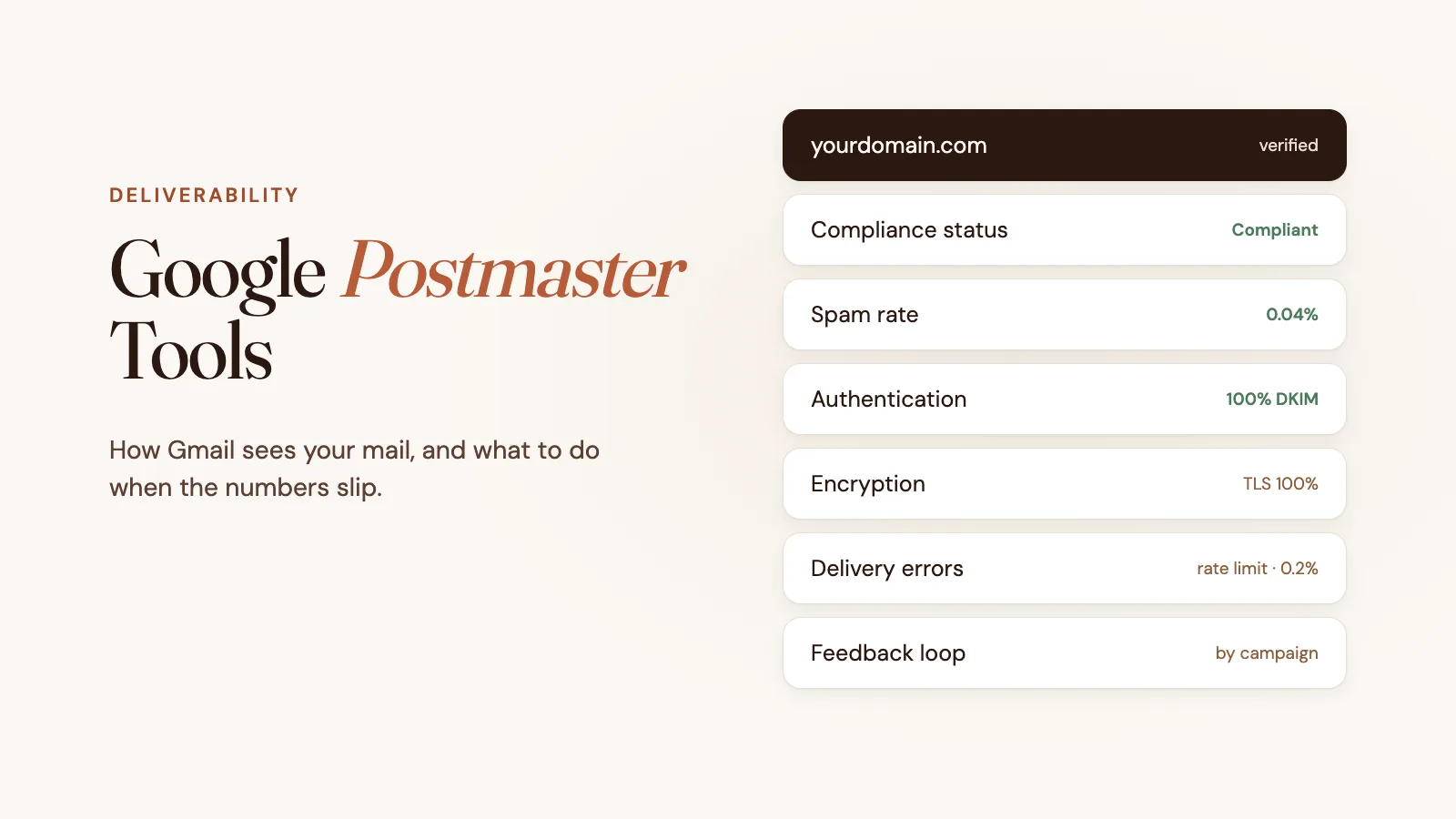
Postmaster Tools has one dashboard per metric. Each shows up to 120 days of history, updated roughly once a day in UTC, so it tells you about trends rather than what happened in the last hour.
| Dashboard | What it shows |
|---|---|
| Compliance status | Whether your domain meets each of Gmail’s sender requirements |
| Spam rate | Share of your DKIM-authenticated mail that Gmail users reported as spam |
| Feedback loop | Spam rates by campaign, for senders who add a Feedback-ID header |
| Authentication | Share of your mail passing SPF, DKIM and DMARC |
| Encryption | Share of your mail sent and received over TLS |
| Delivery errors | Share of your mail Gmail rejected or temporarily deferred, with reasons |
| Domain and IP reputation | Bad, Low, Medium or High ratings (being retired, see below) |
How to set up Google Postmaster Tools
Setup takes about ten minutes, and you need access to your domain’s DNS.
- Sign in at postmaster.google.com with any Google account.
- Add your sending domain. On the Manage Domains page, click Add new domain and enter the domain that signs your mail with DKIM (the
d=domain) or the domain in your SPF Return-Path. This is usually the domain in your From address, but not always. - Verify the domain. Open the domain’s menu, choose Verify domain, and copy the TXT or CNAME record Google gives you. Add it to your DNS, go back to Postmaster Tools, and click Verify. Verification usually takes a few minutes. Postmaster Tools shows no data until the domain is verified.
- Add subdomains if you send from them. If you send marketing from
news.example.comand receipts fromexample.com, add both to see them separately. Subdomains of a verified domain don’t need their own verification. - Give teammates access. From the domain’s menu, choose Manage users and add their Google account email. Google doesn’t notify them, so tell them yourself.
Then wait. Dashboards fill in over the following days, and only for days when you sent enough mail to Gmail.
The most common setup mistake: adding a domain your mail isn’t actually authenticated with. If your email platform signs your mail with its own domain (for example
d=sendgrid.net), Gmail attributes the traffic to that domain, not yours. Set up a custom DKIM domain in your email platform first.
The dashboards, explained
Compliance status
This dashboard checks your domain against Gmail’s sender requirements and marks each one Compliant, Needs work or No data found.
For all senders, it checks:
- SPF and DKIM authentication (every sender needs at least one; bulk senders need both)
- DNS records, including a valid reverse DNS (PTR) record for your sending IPs
- Message formatting that follows RFC 5322
- TLS encryption
- A user-reported spam rate below 0.3%
For bulk senders (about 5,000 or more messages a day to Gmail), it also checks:
- A DMARC record (a
p=nonepolicy is enough) - One-click unsubscribe headers on marketing mail
- That unsubscribe requests are honored, which Google expects within two days
The status uses a rolling average, so a fix can take up to seven days to show as Compliant. It covers primary domains only, not subdomains.
Spam rate
This is the number that matters most. It’s the share of your DKIM-authenticated mail to active Gmail inboxes that recipients marked as spam each day.
- Below 0.1%: healthy. This is the level Google tells senders to stay under.
- 0.1% to 0.3%: a warning zone. Inbox placement often starts to suffer here.
- 0.3% or higher: above Gmail’s requirement. Sustained, it can mean much of your mail goes to spam or gets rejected, and Gmail may withhold mitigation support until it comes down.
Mail that lands in the spam folder can’t be marked as spam, so a low rate here doesn’t always mean you’re reaching the inbox. Read it alongside your open and reply rates.
Feedback loop
If you add a Feedback-ID header to your messages, Gmail reports spam rates per identifier, so you can see which campaign or customer is causing complaints. This is mostly used by email platforms and large senders; most teams can ignore it.
Authentication
Shows the percentage of your mail that passed SPF, DKIM and DMARC each day. Anything below 100% for mail you sent is worth investigating: it usually means a tool sending on your behalf (a CRM, help desk or billing system) isn’t set up with your domain. Check your records with our free SPF, DKIM and DMARC checkers.
Encryption
Shows how much of your mail was sent to and received from Gmail over TLS. Modern email platforms use TLS by default, so this should sit at or near 100%.
Delivery errors
Shows the share of your authenticated mail that Gmail rejected or temporarily deferred, with a reason for each, such as rate limiting, suspected spam, spammy content, a bad attachment, DMARC policy, low reputation, a missing PTR record, or a blocklist listing. A spike here is often the first sign of a reputation problem, before it shows up anywhere else. Our guide to why emails bounce back explains the SMTP codes behind these errors.
Domain and IP reputation
The original Postmaster Tools rated your domain and sending IPs as Bad, Low, Medium or High. Google has announced that the Domain and IP Reputation dashboards will be retired and that the reputation view is being replaced with a new version. Google has postponed the timing, so depending on when you read this, you may still see the old ratings, the new view, or neither. Either way, your spam rate and delivery errors remain the most direct measures of how Gmail sees you.
Why Postmaster Tools shows no data
“No data” is the most common complaint about Postmaster Tools. The usual causes:
- The domain isn’t verified. Check the status column on the Manage Domains page.
- You don’t send enough mail to Gmail. To protect user privacy, Google hides data for days with too little volume. It doesn’t publish the exact threshold; small senders often see gaps or nothing at all.
- You added the wrong domain. Postmaster Tools tracks the DKIM signing domain or the SPF Return-Path domain, which may differ from your From address.
- Your mail isn’t DKIM-signed with your domain. The spam rate only counts DKIM-authenticated mail.
- It’s too soon. Data is delayed by up to a day, and new domains take several days to fill in.
What to do when the numbers go bad
If your spam rate is climbing, look at who you’re emailing and how they joined. Stop sending to people who haven’t opened or clicked in months, check recent sign-up sources for bought or scraped lists, and make unsubscribing easier than reporting spam: a visible link and one-click unsubscribe headers.
If authentication is below 100%, find which tool is sending without your domain’s DKIM signature or outside your SPF record, and fix its setup. Our email deliverability checker tests SPF, DKIM and DMARC in one go.
If delivery errors spike, read the reasons. Rate limiting means you’re sending too fast for your reputation, so slow down. Spam and reputation errors mean you need to work on complaints and engagement first. Postmaster Tools doesn’t report bounces from invalid addresses, so watch your email platform’s bounce reports and verify your list before big sends.
Postmaster tools for Outlook and Yahoo
Google Postmaster Tools only covers Gmail. The other big providers have their own:
- Microsoft SNDS (Smart Network Data Services) shows data for mail from your sending IPs to Outlook.com and Hotmail consumer accounts. It’s IP-based, so it’s most useful if you control your sending IPs.
- Yahoo Sender Hub covers Yahoo and AOL, including Yahoo’s complaint feedback loop.
Frequently Asked Questions
Is Google Postmaster Tools free?
Yes. Google Postmaster Tools is free to use. You need a Google account and access to your domain’s DNS to verify that you own it.
Why is Google Postmaster Tools not showing any data?
Usually because the domain isn’t verified, you don’t send enough mail to Gmail for Google to show daily data, or you added a domain your mail isn’t authenticated with. Postmaster Tools tracks the DKIM signing domain or SPF Return-Path domain, and data can take several days to appear after setup.
What is a good spam rate in Google Postmaster Tools?
Keep your spam rate below 0.1%, and never let it reach 0.3%. Gmail requires senders to stay under 0.3%, and recommends staying under 0.1% to avoid deliverability problems.
Does Google Postmaster Tools still show domain reputation?
Google has announced that the Domain and IP Reputation dashboards will be retired and the reputation view replaced with a new version, but it has postponed the timing. Whatever your account shows, your spam rate and delivery errors are the best measures of how Gmail treats your mail.
Does Postmaster Tools work for Outlook or Yahoo?
No. Google Postmaster Tools only reports on mail sent to Gmail accounts. For Outlook.com and Hotmail, use Microsoft SNDS. For Yahoo and AOL, use Yahoo Sender Hub.
Postmaster Tools shows you the damage after you send. To prevent it, check your SPF, DKIM and DMARC with our free email deliverability checker, and verify your list so dead addresses never reach Gmail.