 Claude
  Perplexity
Solving the 'No Emails Coming Through' Problem
Struggling with no emails coming through? This practical guide helps you diagnose and fix email delivery problems from client settings to server-side issues.
TL;DR: Struggling with no emails coming through? This practical guide helps you diagnose and fix email delivery problems from client settings to server-side issues.
When you realize no emails are coming through, the problem usually boils down to one of three things: an issue with your email client (like Outlook or Gmail), an overzealous spam filter, or a problem on the sender’s side. Before you start pulling your hair out and diving into complicated server settings, a quick check of these common areas will solve the issue most of the time.
Your Quick Diagnostic Checklist for Missing Emails
There’s nothing quite like the frustration of waiting for an important email that never shows up. That empty inbox can feel isolating, but the fix is usually much simpler than you might think. The trick is to be systematic. Start with the most obvious culprits before you assume there’s a major technical meltdown.
This quick diagnostic approach will help you figure out if the problem is with your device, your account, or something happening before the email even had a chance to reach you.
Pinpointing the Source of the Problem
First things first, let’s isolate the problem. Are you not getting emails on your phone, but they’re showing up just fine on your laptop? That’s a good sign it’s a local setting or a network issue on that one device. If the emails are missing everywhere, the problem is more likely with your account itself—think a full mailbox or a filter rule gone rogue.
It’s worth remembering that email delivery is never a 100% guarantee, even under perfect conditions. In fact, roughly 1 in every 5 emails never makes it to the intended inbox because of various delivery hurdles. That’s a big reason why the global inbox placement rate hovers around just 84.8%. You can learn more by digging into email deliverability trends and why they matter so much.
The image below breaks down the top three technical reasons emails go missing.
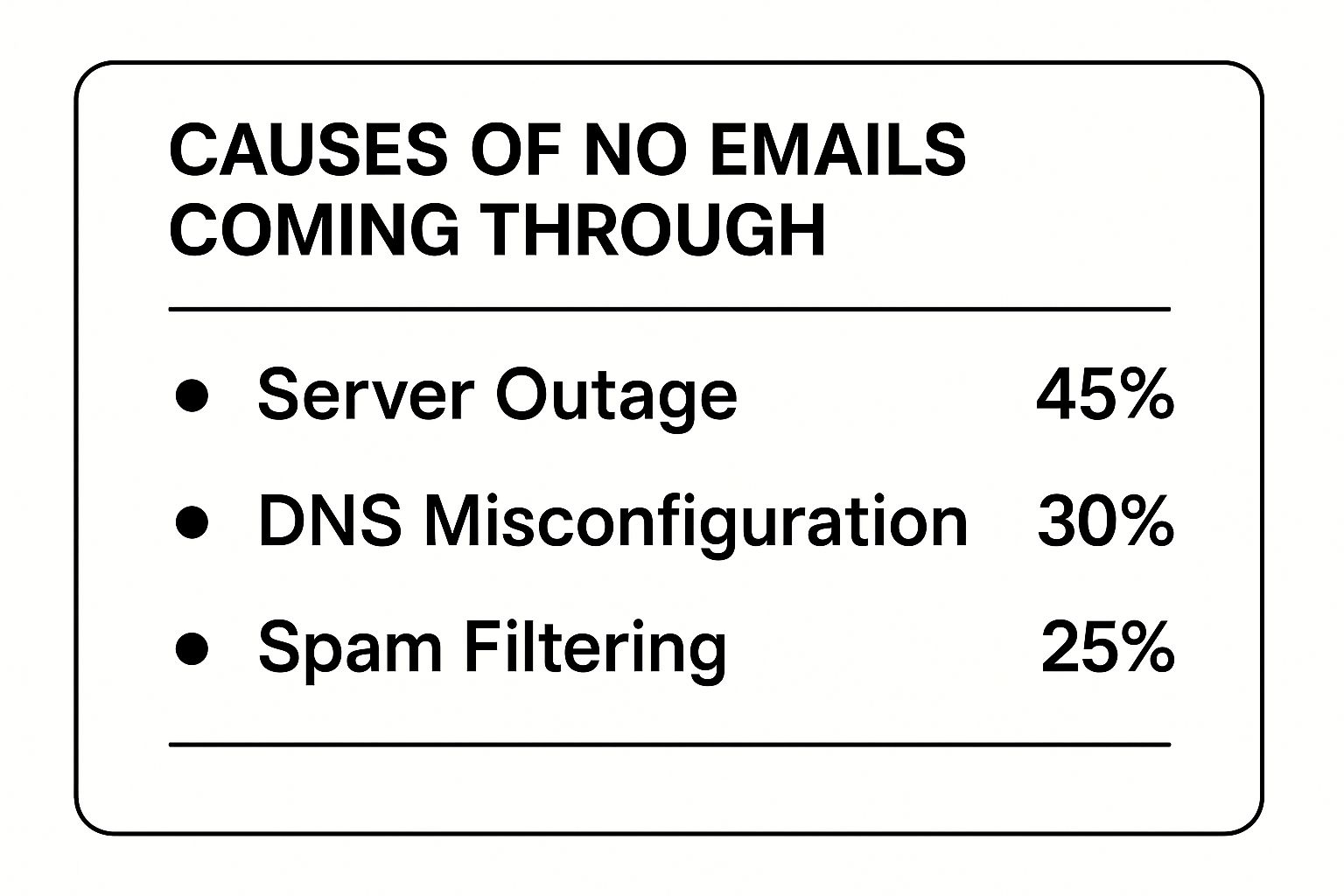
As you can see, server outages are the most common cause, which really highlights that the problem is often completely out of your hands.
To make this even clearer, here’s a quick-reference table to help you diagnose the issue at a glance.
Common Reasons for Email Delivery Failure
| Symptom | Potential Cause | First Place to Check |
|---|---|---|
| No emails on one device, but OK on others | Client misconfiguration or network issue | Email client settings on the affected device |
| No emails anywhere, from anyone | Full mailbox or an overly broad filter/rule | Your account storage and junk/filter settings |
| Missing an email from a specific sender | Sender issue or spam filter | Your Spam/Junk folder, sender’s email address |
| Getting some emails, but others are delayed | Server-side issues (sender or receiver) | Check for any service outage notifications |
This table should give you a solid starting point for troubleshooting before you need to call in for help.
Don’t immediately assume the worst. A methodical check of your settings, spam folder, and storage space will often reveal a simple fix. Keeping a note of what you’ve checked makes it much easier to explain the problem if you do need to escalate it.
Understanding where to look first saves a ton of time and stress. Now that you have a foundation, we can move on to tackling the most common local configuration problems you might run into.
Checking Your Email Client and Local Settings
More often than not, when you notice no emails coming through, the solution is hiding in plain sight. Before you jump to conclusions about a server-side meltdown, your first stop should always be your own email app—whether that’s Outlook, Gmail, or Apple Mail. These local settings are the most common and easiest-to-fix culprits.
Let’s start with the simplest check of all. It sounds almost too basic, but you’d be surprised how often it’s the answer: are you accidentally working offline?
Many desktop email clients like Outlook or Thunderbird have an “Offline Mode.” It’s a handy feature for when you’re on a plane and want to draft emails, but it also completely stops the client from syncing with the server. A quick glance at the bottom status bar usually tells the whole story. If you see “Working Offline” or “Disconnected,” a simple click is often all it takes to reconnect and let the waiting messages flood in.
Uncovering Hidden Rules and Filters
If your connection is solid, the next place to hunt for trouble is in your email rules and filters. These are fantastic automation tools, but they can create massive headaches when you set one and forget it. You might have set up a rule months ago to automatically move emails with “unsubscribe” in the text to a specific folder, but now it’s catching important newsletters or notifications you actually want.
I once spent an hour troubleshooting with a client, only to discover a forgotten rule they’d created was archiving every single email from their biggest customer. The emails were arriving just fine, they just weren’t going to the inbox.
Take a few minutes to review your active rules. Here’s what to look for:
- Overly broad keywords: Is a rule filtering emails based on a common word like “meeting” or “update”? It could be redirecting way more than you intended.
- The destination: What is the rule doing? If it’s moving emails to the trash, an archive folder, or just marking them as read, it can easily seem like they never arrived.
- Sender-based rules: Double-check that you haven’t accidentally created a rule that affects an entire domain (e.g., all emails from
@company.com) by mistake.
The goal here is to make sure you’re actually in control of your inbox. Forgotten automation is a frequent cause of the “no emails coming through” problem, and a quick audit of your rules often provides an instant fix.
Confirming Your Account Settings
Finally, sometimes the problem is as simple as a corrupted account setting or an outdated app. These issues can cause synchronization to fail silently in the background. An app update might have changed security requirements, or maybe you updated your password on the web but forgot to update it in your desktop client.
Dig into your account settings within the email client and confirm all the server details—IMAP/POP and SMTP settings, usernames, and passwords—are correct. While you’re there, make sure your email client is updated to the latest version. Developers are constantly releasing patches that fix obscure bugs, and one of those bugs could be what’s interfering with your email delivery. A simple software update can sometimes resolve the entire issue on its own.
Taming Spam Filters and Blocklists
Alright, so you’ve double-checked all your client settings and everything looks solid, but emails are still missing in action. The next place to look, and one of the most common culprits, is your spam filter. These things are workhorses, scanning countless signals to keep junk out, but they’re far from perfect. Sometimes, they get a little too aggressive and flag legitimate emails.
This happens a lot with automated messages—think password resets, newsletters you actually signed up for, or e-commerce receipts. The formatting or links in these emails can sometimes trigger a filter’s “suspicious” radar, shunting them into a folder you rarely check. That’s why a deep dive into your Spam or Junk folder isn’t just a good idea; it’s a mandatory step.
Getting a Handle on Your Spam Folder
Don’t just give your spam folder a quick once-over. Really dig in and see what’s there. If you spot an email from someone you know or a service you use, you need to act. When you mark that message as “Not Spam,” you’re doing more than just rescuing that one email.
That simple click sends valuable feedback to your email provider. You’re essentially teaching the algorithm, “Hey, you got this one wrong. This sender is legit.” The more you do this, the smarter the filter gets, and the less likely it is to make the same mistake again. For more on this, we’ve put together a detailed guide on how to prevent emails from going to spam that covers even more strategies.
You can also get ahead of the problem with a few proactive moves.
- Make Them a Contact: Add the sender’s email address to your address book. This is one of the strongest signals to an email service that you trust the source.
- Use the “Safe Senders” List: Most email clients let you create a “whitelist” or a “safe senders” list. Popping a domain (like
@company.com) or a specific address in there tells your inbox to let their emails through, no questions asked.
I once worked with a client who kept missing crucial invoices from a key supplier. Turns out, every single one was languishing in their spam folder. We added the supplier’s address to their contacts, and just like that, the problem vanished for good.
Could You Be on a Blocklist?
Finally, there’s one more list to check: your own. It’s less common, but you might have accidentally blocked a sender at some point and forgotten all about it. Take a look at your email client’s “Blocked Senders” or “Restricted” list to make sure an important contact didn’t end up there by mistake.
This is the opposite of your safe list; it’s a list of addresses that get rejected on sight. Finding a sender here and removing them is usually just a one-click fix that can instantly solve a very frustrating delivery issue.
Understanding Sender-Side Delivery Problems
Sometimes, the reason you have no emails coming through has nothing to do with your setup. The problem can actually be on the sender’s end, where a simple misconfiguration stops their messages before they even get a chance to reach your server.
It’s a lot like someone sending you a package with a dodgy return address—the postal service is going to eye it with suspicion. In the world of email, this trust is built through a trio of authentication protocols: SPF, DKIM, and DMARC. Think of them as a digital handshake, proving to your email provider that the sender is who they say they are. When a sender hasn’t set these up correctly, your server might just reject their emails to shield you from spam or phishing attempts.
The Role of Email Authentication
These protocols work together, adding layers of security to verify an email is legit and hasn’t been messed with on its way to you.
SPF (Sender Policy Framework): This is the first line of defense. It’s basically a public list of all the servers that are allowed to send emails for a particular domain. If an email shows up from a server that isn’t on the list, it immediately raises a red flag.
DKIM (DomainKeys Identified Mail): This one is a bit more sophisticated. It attaches a unique digital signature to the email header. Your server can then check this signature to make sure the message wasn’t altered after it was sent.
DMARC (Domain-based Message Authentication, Reporting & Conformance): DMARC is the policy that pulls SPF and DKIM together. It tells receiving servers exactly what to do if an email fails either of those checks—whether to quarantine it, reject it flat-out, or let it through anyway. To really get into the weeds, you can learn more about https://truelist.io/blog/what-is-dmarc-policy and see why it’s so critical for deliverability.
A missing or broken authentication record is a classic reason for delivery failure. I’ve seen cases where an SPF record had too many DNS lookups—email providers cap this at 10—and it caused all their emails to fail. It’s a small technical detail with a huge impact.
When the Sender Has a Reputation Problem
Beyond the technical setup, a sender’s domain reputation is everything. If their domain has a history of sending spam, major providers like Gmail and Outlook are going to be incredibly wary of anything they send. This reputation is built over time and is affected by things like high bounce rates, spam complaints from users, and how often people actually open their emails.
A sender with a poor reputation will find their emails constantly getting blocked, even with perfect SPF and DKIM records. This is one of those invisible problems where you think something is wrong on your end, but in reality, your email provider is just doing its job protecting you from a source it doesn’t trust.
Key Takeaway: Understanding sender-side issues transforms your conversation. Instead of just saying, “I didn’t get your email,” you can ask, “Could you check if your SPF or DKIM records are configured correctly?” This points them toward a solution and often resolves the ‘no emails coming through’ problem much faster.
This knowledge is especially powerful if you’re involved in marketing. When you’re designing effective email sequence templates, you have to know that if the foundational authentication isn’t right, even the most brilliant campaign will never reach its audience.
Advanced Server and Domain Troubleshooting
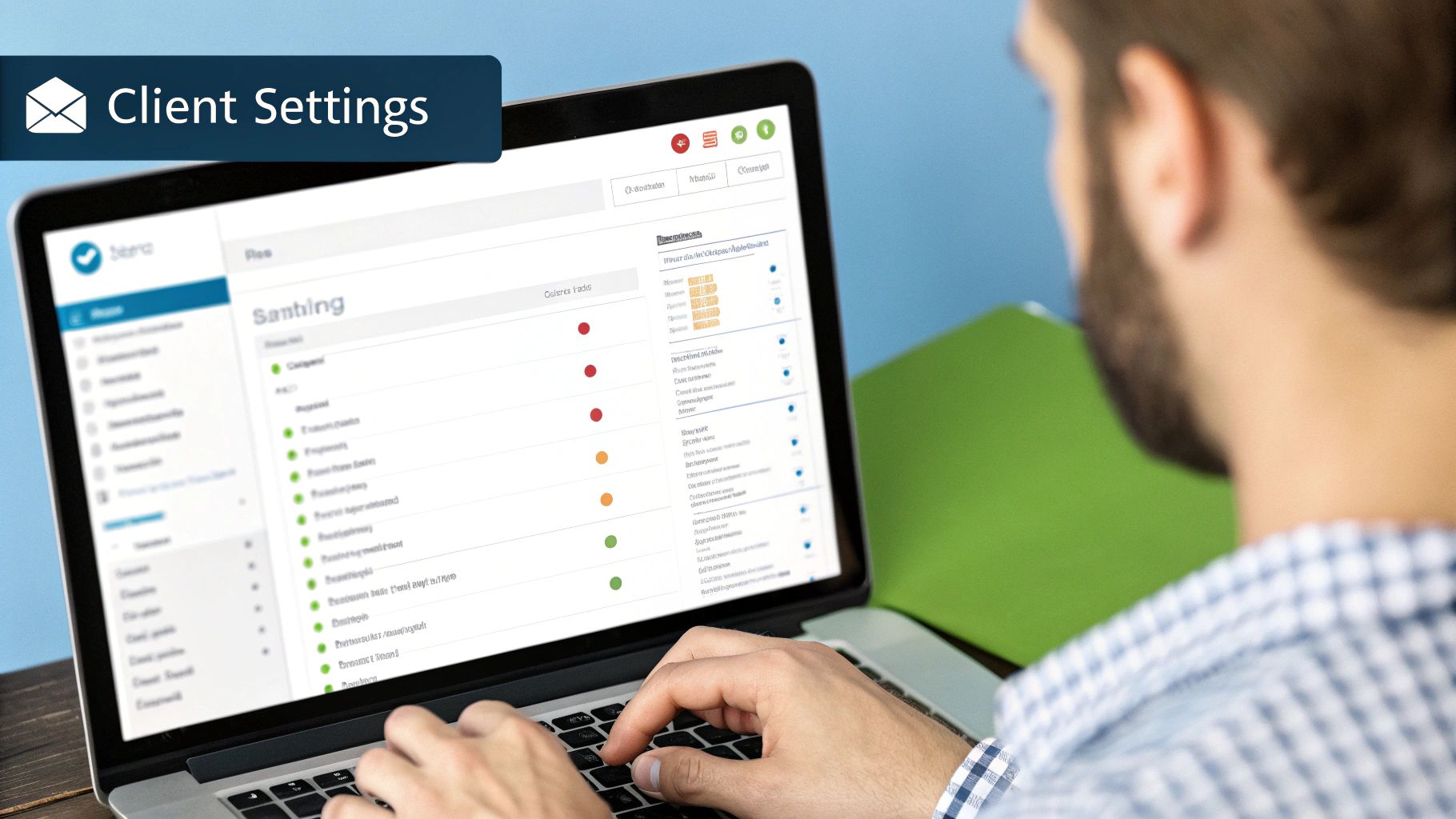
So, you’ve checked all the obvious culprits and are still seeing no emails coming through. At this point, it’s time to look past your email app and dig a little deeper. The problem might be rooted in your account’s backend—either the server that handles your mail or your domain’s configuration.
I know that sounds technical, but don’t worry. More often than not, the solution is surprisingly straightforward. We’re going to walk through two of the most common server-side problems I see: a full mailbox and the cryptic clues hidden in bounce-back messages.
Is Your Mailbox Just Full?
It sounds almost too simple, but one of the top reasons for a sudden email blackout is a full mailbox. Just about every email service, whether it’s a free one like Gmail or part of a paid hosting package, sets a storage limit. Once you hit that cap, the server has no place to store new messages.
So what happens? It simply starts turning them away. From your end, it just looks like the emails have stopped. The sender, on the other hand, usually gets an error message—and that’s a key piece of the puzzle we’ll get to next.
First things first, check your storage usage. You can usually find this information in your account settings or on your webmail dashboard.
If you’re near the limit, it’s time to clean house:
- Archive what you need. Move older emails you can’t delete into an archive folder. This often frees up space in your primary inbox, which is what matters for receiving new mail.
- Hunt down large attachments. Sort your inbox by size and you might be shocked. A few emails with hefty attachments can easily eat up a huge chunk of your quota.
- Take out the trash. Remember to empty your trash and spam folders. They count against your total storage, and clearing them is an easy win.
Think of this as regular maintenance, not a one-off fix. Making a habit of clearing out old emails means you’ll never get caught off guard by a full mailbox again.
Learn to Read Bounce-Back Messages
When a server rejects an email, it doesn’t do it quietly. It sends an automated reply to the original sender, officially called a Non-Delivery Report (NDR) but known to most of us as a “bounce-back.” This message is a goldmine because it tells you exactly why the email failed.
If you know no emails are coming through from a specific person, ask them if they got an error message back after emailing you. These reports contain error codes and descriptions that get right to the heart of the problem.
For example, a bounce-back message will often spell it out for you:
- “User’s mailbox is full”: This is your smoking gun—a confirmed storage issue.
- “User unknown” or “No such recipient”: This usually points to a simple typo. The sender might have misspelled your email address.
- “Message rejected due to spam content”: This tells you your server’s spam filter is being a little too aggressive.
Getting your hands on that specific error message changes the game completely. Instead of vaguely telling your IT department, “I’m not getting emails,” you can now say, “Senders are getting a ‘Mailbox Full’ error.” That gives them a concrete starting point to check server logs and get you back online fast.
Common Questions About Email Delivery Issues
Sometimes, you can follow every step in the book and still find yourself staring at an empty inbox. It’s frustrating, but when the usual suspects are cleared, it often helps to look at the problem from a fresh perspective. Let’s tackle a few of the most frequent and specific scenarios that pop up when emails just aren’t arriving.
Think of this as the last-ditch checklist for those nagging issues that don’t seem to fit anywhere else. More often than not, the solution is hiding in plain sight.
Why Can I Send Emails but Not Receive Them?
This is a classic head-scratcher. If your emails are going out just fine but nothing is coming in, the problem is almost certainly with your incoming mail server settings. Your outgoing (SMTP) setup is clearly working, but the instructions for fetching new mail (your POP/IMAP settings) have gone wrong somewhere.
Dive back into your settings and meticulously check the incoming server name, port number, and security protocols (like SSL/TLS). A single typo here is all it takes to break the connection. Another common culprit is a full mailbox; your server will start rejecting new mail to save space but won’t stop you from sending messages out.
Pro Tip: Don’t just visually inspect your settings. A much more effective trick is to completely remove the email account from your client and set it up again from scratch. This forces a clean handshake with the server and often clears up those stubborn glitches you can’t spot with the naked eye.
Could My Antivirus or Firewall Be Blocking Emails?
Yes, and it happens more often than you’d think. Security software is designed to be overly cautious, and its email scanning features can sometimes get a little too aggressive. It might misinterpret the connection between your email client and the server as a threat, blocking it without telling you.
Here’s a quick way to diagnose this: temporarily disable the email-scanning feature in your antivirus or firewall. If your emails suddenly come pouring in, you’ve found your culprit. Of course, you don’t want to leave it disabled. The proper fix is to go into your security software’s settings and add your email client (like Outlook.exe or Thunderbird.exe) to its “allow list” or “exceptions.”
How Can I Confirm My Server Blocked an Email?
The absolute best way to know for sure is to ask the sender one simple question: “Did you get a bounce-back message?” That automated reply, known as a Non-Delivery Report (NDR), is the server’s official notice that the delivery failed. It’s a goldmine of information.
The NDR will spell out the exact reason for the failure with specific error codes and a plain-English explanation. It will tell you things like:
- User unknown: The sender probably has a typo in your email address.
- Mailbox full: This is direct confirmation that you need to clear out some space.
- Rejected as spam: The message got caught in your server’s spam filters.
Armed with that report, you’re no longer guessing; you have a specific problem you can solve.
A clean email list is your best defense against delivery headaches. With Truelist, you can make sure your contacts are valid and active, which drastically cuts down on bounce rates and protects your sender reputation. Our unlimited validation service is a simple, affordable way to keep your list healthy, giving every message you send the best possible chance of landing in the inbox. Start validating for free today at Truelist and see what a difference a clean list makes.