 Claude
  Perplexity
What Is SMTP Authentication and How It Secures Your Email
Learn what is SMTP authentication and why this digital handshake is essential for email security, deliverability, and protecting your sender reputation.
TL;DR: Learn what is SMTP authentication and why this digital handshake is essential for email security, deliverability, and protecting your sender reputation.
Think of SMTP authentication as a digital bouncer for your email server. It’s a simple security checkpoint that asks for your username and password before letting you send an email. This one step is a critical defense against spammers and ensures that only you can send messages from your account.
Understanding SMTP Authentication
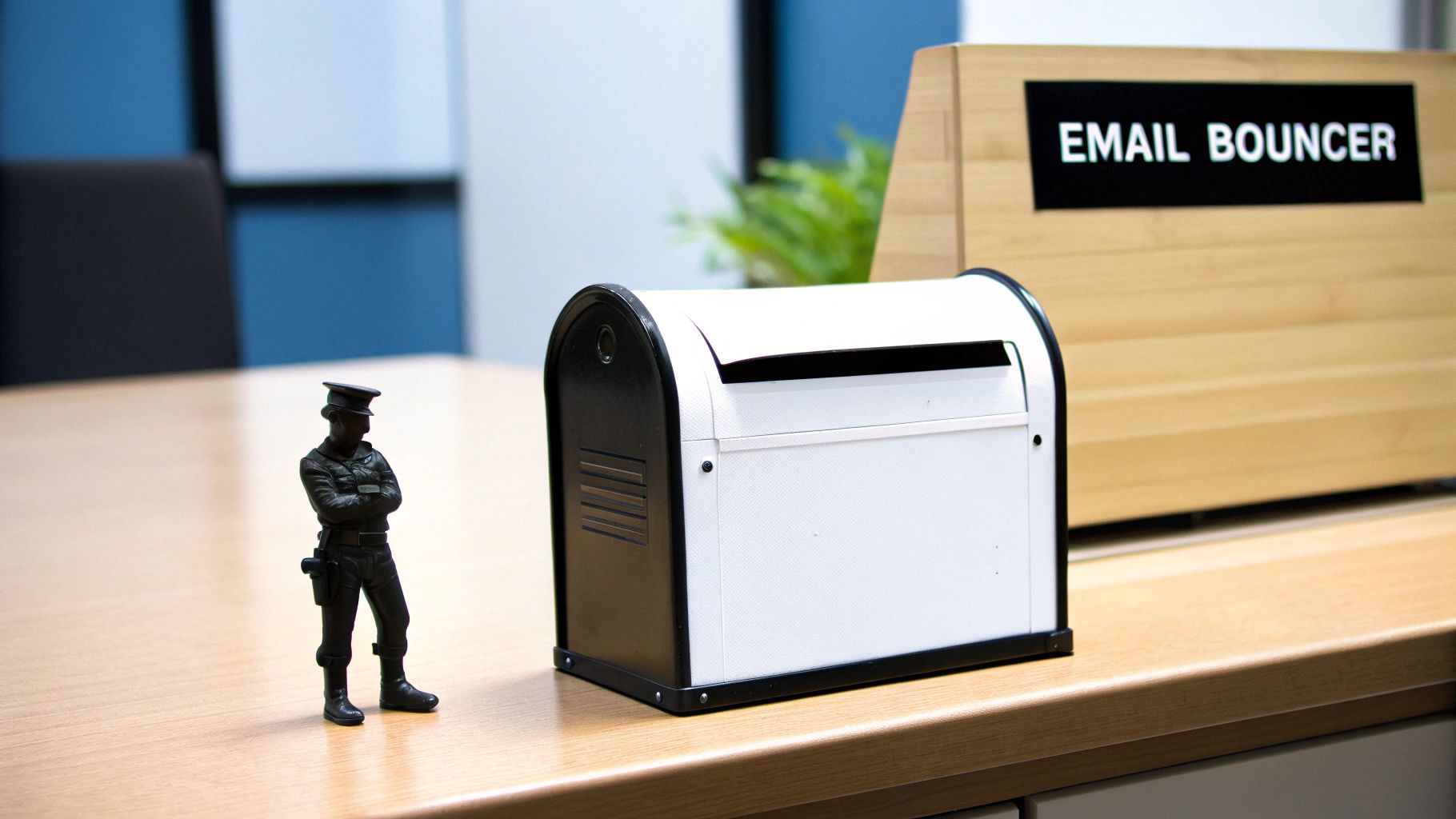
Imagine your email server is an exclusive club. Without a bouncer at the door, anyone could wander in, claim to be a member, and start causing chaos. In the email world, that chaos looks like spam, phishing scams, and malicious emails that look like they came directly from you.
That’s exactly what happens on a server without SMTP authentication. This kind of server is called an “open relay,” and it’s a spammer’s paradise because it doesn’t check who is sending what. This inevitably tanks your sender reputation, gets your real emails flagged as spam, and puts your contacts in harm’s way.
The Role of Credentials
SMTP authentication fixes this problem with a simple but powerful security check. When you first set up your email in an app like Outlook or Apple Mail, you enter your SMTP credentials—usually just your email address and password.
SMTP authentication is the fundamental process of verifying a sender’s identity before allowing them to relay mail through a server. It transforms the server from an open gateway into a secure, access-controlled system.
This “digital handshake” confirms you are who you say you are before a single message goes out. This process is absolutely essential for a few key reasons:
- Protecting Your Identity: It stops bad actors from spoofing your email address and impersonating you.
- Improving Deliverability: Mailbox providers like Gmail and Outlook are far more likely to trust authenticated emails, which means more of your messages land in the inbox.
- Securing Your Account: It’s a basic but necessary layer of security that guards against unauthorized access and abuse.
To get a better sense of how this fits into the bigger picture of digital security, it’s helpful to understand concepts like Multi-Factor Authentication (MFA). While MFA adds more layers, SMTP authentication is the first, non-negotiable step toward building a secure and trustworthy email presence.
To simplify these concepts, here’s a quick breakdown of the core components involved.
Key Concepts in SMTP Authentication at a Glance
| Component | Function | Analogy |
|---|---|---|
| SMTP Server | The mail server responsible for sending emails. | The post office that mails your letters. |
| Email Client | The application you use to write and send emails (e.g., Outlook, Gmail). | The pen and paper you use to write a letter. |
| Credentials | Your username and password used for verification. | Your personal ID card or a secret password. |
| Open Relay | An unsecured SMTP server that sends mail from anyone without checks. | A public mailbox anyone can use to send anything. |
This table provides a quick reference, but the key takeaway is that authentication is all about proving your identity to the server before it agrees to send your mail.
From Open Relays to Secure Servers: The Rise of SMTP AUTH
To really get why SMTP authentication is so important, we have to jump back to the internet’s early days. Picture the 1990s—a more trusting, and frankly, more naive digital world. Email servers back then were a perfect reflection of this attitude. Most operated as open relays, meaning they’d happily accept an email from anyone and send it to anyone else. No questions asked.
Imagine a public mailbox with an endless supply of free stamps, ready for anyone to use completely anonymously. This “open-door” policy definitely helped email take off, but it also rolled out the red carpet for spammers. They quickly figured out they could hijack these open relays to blast out millions of junk emails without ever revealing who they were.
This loophole triggered a massive spam crisis that nearly broke email for everyone. Inboxes were drowning in garbage, and trying to find a legitimate message was like searching for a needle in a haystack. It became painfully clear that the trust-based system was broken and a new security model was non-negotiable.
The Spam Crisis That Forced a Change
Things got bad, fast. By 1998, an incredible 55% of all mail servers worldwide were running as open relays. This created a huge, unregulated highway for spammers to cause chaos. The situation was so dire that it led directly to the creation and adoption of SMTP AUTH, which slashed that number to less than 1% by 2002. You can get the full story on how this standard changed the game in this deep dive into email security history.
This was a major turning point. Instead of just blindly accepting every connection, servers could finally demand to see some ID.
SMTP AUTH was born out of necessity. It introduced a simple yet powerful idea: accountability. By forcing senders to log in, it slammed the door on the anonymous abuse that defined the open relay era.
The shift to SMTP authentication wasn’t just a technical patch; it was a fundamental change in how we thought about email security. It set a new standard where verification wasn’t an option—it was the default.
Establishing a New Standard for Trust
The impact was immediate and profound. By making authentication the norm, the industry accomplished several critical things that are still the foundation of email today:
- Blocking Unauthorized Use: It cut spammers off at the knees by preventing them from hijacking servers for their campaigns.
- Introducing Sender Accountability: For the first time, an email could be tied to a specific, verifiable account, making it possible to track down malicious senders.
- Building a Foundation for Reputation: This paved the way for modern sender reputation systems, allowing mailbox providers to start trusting authenticated senders far more than anonymous ones.
Ultimately, SMTP authentication was the industry’s answer to a system on the verge of collapse. It turned email from a wild, insecure free-for-all into the reliable workhorse we all depend on today, proving that a simple security handshake is the bedrock of digital trust.
How the Technical Handshake Works Step by Step
So, what’s really going on behind the scenes when you hit “send” on an email? It’s not just a digital shot in the dark. Instead, your email client and the server have a quick, structured conversation—a technical handshake—to verify who you are before your message is allowed to go anywhere.
Think of it like checking your ID at a security desk. Before you can enter the building (send the email), the guard (the SMTP server) needs to make sure you’re on the approved list. This all starts when your email client finds the right server, a process guided by something called an MX record. Once your client knocks on the server’s door, the handshake begins.
This diagram shows just how critical this security step became, marking a major shift from the “wild west” of early email to the authenticated system we rely on today.
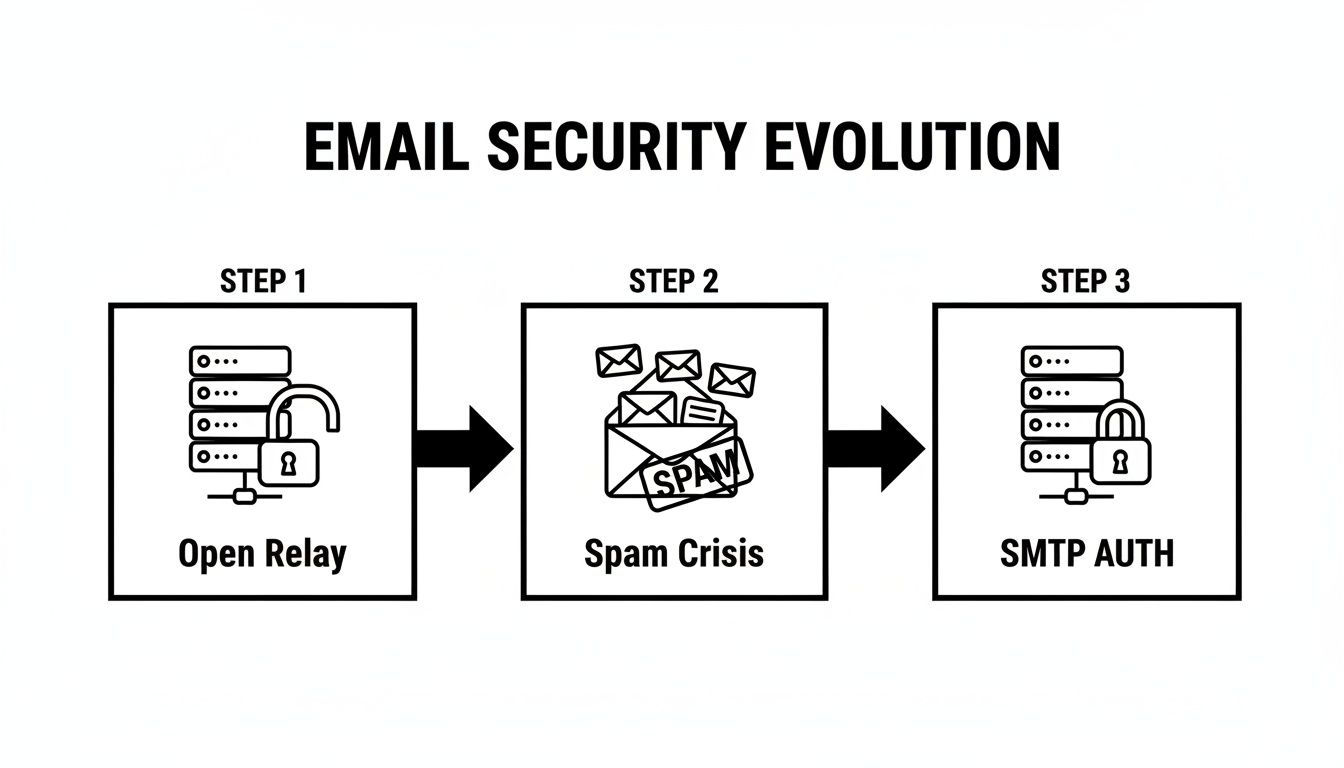
The spam crisis forced the industry to abandon insecure open relays, making the secure handshake of SMTP AUTH the new standard for trustworthy email.
The Initial Connection and Greeting
First things first, your email client (the “client”) has to introduce itself. It connects to the SMTP server and sends a command called EHLO (which stands for Extended Hello). It’s the digital equivalent of saying, “Hi, I’m here to send an email and I know how to follow modern security rules.”
The server then responds with a menu of its capabilities. This list includes all the commands and security protocols it understands. The most important one for our purposes is the AUTH command, which tells the client, “You’ll need to prove your identity.” The server also lists the specific authentication methods it accepts, like PLAIN, LOGIN, or CRAM-MD5.
The Secure Tunnel and Credential Exchange
Now for the critical part: privacy. Before your client sends your username and password, it needs to make sure no one is eavesdropping. To do this, it issues a STARTTLS command.
Think of
STARTTLSas both parties agreeing to step into a soundproof room before sharing secrets. This command wraps the entire conversation in a TLS (Transport Layer Security) encryption layer, creating a secure tunnel.
With the secure tunnel established, everything that happens next is encrypted. Your client sends the AUTH command, specifying which authentication method it will use (like AUTH LOGIN). The server then challenges the client for the credentials. The client sends back your username and password, now safely shielded from prying eyes by the TLS encryption.
The server quickly verifies these details. If everything checks out, it sends a confirmation message, usually something like “235 2.7.0 Authentication successful.” That’s it! The handshake is complete. Your identity is confirmed, and the server gives you the green light to send your email. This whole dance happens in the blink of an eye, but it’s a powerful security check that runs every single time you send a message.
A Look at Common SMTP Authentication Methods
Not all SMTP authentication methods are created equal. Think of them like locks on a door—some are simple padlocks, while others are sophisticated digital systems. Understanding the differences helps you see what’s actually protecting your account and why modern standards are so important.
The whole idea of securing email really kicked off in the 1990s, born out of necessity as spam started to explode. Early email was built on trust, but as the internet grew, so did the abuse. The creation of SMTP AUTH was a huge turning point, adding the login mechanisms we now rely on to keep email from being a total free-for-all. To get a feel for how we got here, you can dive into the history of the SMTP protocol on Wikipedia.
This evolution gave us several different ways to handle authentication, each with its own trade-offs.
The Old Guard: PLAIN and LOGIN
The oldest and simplest methods you’ll encounter are PLAIN and LOGIN. They get the job done, but they come with some serious security baggage.
- PLAIN: This is as basic as it gets. It sends your username and password together in a single, unencrypted string. It’s fast and easy to implement, but it’s also wide open to eavesdropping without a security layer like TLS.
- LOGIN: This works almost identically, but it sends the username and password in two separate steps. It’s a slightly different dance, but it shares the same critical flaw as PLAIN—your credentials are sent as plain, readable text.
Without TLS encryption, using PLAIN or LOGIN is like shouting your password across a crowded room. Anyone listening in can snatch your credentials right out of the air.
Because these methods are now relics of a less secure time, major providers are actively shutting them down. For instance, Microsoft plans to permanently disable Basic Authentication (which covers PLAIN and LOGIN) for SMTP AUTH in Exchange Online by April 2026, pushing everyone toward safer, modern alternatives.
A Smarter Approach: CRAM-MD5
A definite step up from the classic methods is CRAM-MD5 (Challenge-Response Authentication Mechanism-MD5). This one is a bit more clever. Instead of sending your password, the server issues a unique “challenge”—a random string of data.
Your email client then takes that challenge, uses your password as a key to encrypt it, and sends the resulting hash back to the server. The server does the same calculation on its end. If the two hashes match, you’re in. The big win here is that your actual password never crosses the network. However, the MD5 hashing algorithm itself is now considered weak and breakable, so while it was a great idea at the time, it’s no longer the top dog.
The Modern Gold Standard: OAuth 2.0
Today, the most secure and widely adopted method is OAuth 2.0. This is the powerhouse used by giants like Google and Microsoft, and it works on a completely different principle. Instead of giving an application your password, you grant it a temporary access token.
This token gives the application limited, specific permissions to your account for a set amount of time. If a token is ever intercepted, the attacker only gains temporary, restricted access, and your actual password remains completely safe. It’s the same technology that lets you “Log in with Google” or “Sign in with Apple” on other websites without ever handing over your password. It’s a foundational piece of modern security and an essential part of any solid email authentication strategy.
To make it easier to see how these methods stack up, here’s a quick comparison.
Comparison of SMTP Authentication Mechanisms
This table breaks down the key differences between the most common SMTP AUTH mechanisms, from their security level to their ideal use cases.
| Mechanism | Security Level | How It Works | Best For |
|---|---|---|---|
| PLAIN/LOGIN | Low | Sends username and password as plain text. Relies entirely on TLS for security. | Legacy systems or internal networks where traffic is already secured. |
| CRAM-MD5 | Medium | Uses a challenge-response system so the password is never sent over the network. | Scenarios where TLS is unavailable, but this is increasingly rare. |
| OAuth 2.0 | High | Grants temporary, permission-based access tokens instead of using a password. | Modern applications, cloud services, and any scenario requiring top-tier security. |
As you can see, while older methods still exist, OAuth 2.0 is the clear winner for protecting your accounts in today’s environment.
Why Authentication Is Your Key to Better Email Deliverability
Sending an email is one thing. Getting it into the inbox? That’s a whole other ball game. The entire journey from “send” to “delivered” hinges on trust, and SMTP authentication is the very first handshake that establishes it. Without that handshake, your emails are like anonymous postcards—anyone could have sent them, and no one’s going to trust them.
Internet service providers (ISPs) like Gmail and Outlook are naturally suspicious of unauthenticated mail. When an email shows up from a server that doesn’t bother asking for a login, massive red flags go up. This lack of verification makes your message look just like the billions of spam emails flooding the internet every day, and it’s a one-way ticket to the junk folder.
This whole system was born out of the spam-filled chaos of the 1990s. Back then, early SMTP servers blindly trusted IP addresses, a method that became a disaster as the internet grew and spammers took over. The introduction of SMTP AUTH finally gave servers a way to demand credentials, which slammed the door on spoofing and saved ISPs from drowning in junk mail. You can dive deeper into this evolution by exploring the history of the SMTP protocol on MySMTP.com.
Building a Strong Sender Reputation
Think of your sender reputation as your email’s credit score. Every time you send a properly authenticated email, you’re telling mailbox providers that your messages are legit and that you’re an accountable sender. It’s the first and most important deposit you can make into your reputation bank.
By simply proving you are who you say you are, SMTP authentication gives your emails an instant credibility boost. This single action is the difference between being seen as a trusted correspondent and a potential spammer.
This positive signal directly boosts your deliverability rates. ISPs become far more willing to place your messages in the primary inbox, which means higher open rates, better engagement, and a much healthier email program overall.
The Gateway to Advanced Email Security
Beyond just building a good reputation, SMTP authentication is the mandatory first step for implementing more advanced email security protocols. You simply can’t set up powerful standards like SPF, DKIM, and DMARC without first locking down the server that sends the email.
These protocols all work together, creating a layered defense:
- SMTP Authentication: Confirms the sender has permission to use the mail server.
- SPF (Sender Policy Framework): Lists the specific IP addresses authorized to send emails for your domain.
- DKIM (DomainKeys Identified Mail): Adds a digital signature to your emails, proving the message hasn’t been altered in transit.
- DMARC (Domain-based Message Authentication, Reporting & Conformance): Instructs receiving servers on how to handle emails that fail SPF or DKIM checks.
Each layer reinforces the others. For instance, a solid DKIM signature is essential for proving your message’s integrity, which you can learn about in our guide on how to configure DKIM. But without that initial SMTP authentication handshake, the rest of the security structure falls apart.
The Bigger Picture: SPF, DKIM, DMARC, and BIMI
SMTP authentication gets your message out the door, but it doesn’t tell receiving servers who’s allowed to send from your domain. That’s the job of the DNS-based authentication trio: SPF, DKIM, and DMARC. Together with SMTP AUTH, they form the full picture of modern email identity verification.
SPF: Naming Your Authorized Senders
Sender Policy Framework (SPF) is a DNS TXT record that lists every IP or hostname allowed to send mail on behalf of your domain. A typical record:
v=spf1 ip4:192.0.2.10 include:_spf.google.com include:mailgun.org ~allEach include: pulls in an ESP’s authorized senders. The final ~all is a soft fail (mark suspicious but accept); use -all for a hard fail once you’re confident. Three gotchas: (1) the 10-lookup limit — too many include: mechanisms triggers a PermError; (2) only one v=spf1 record per hostname; (3) subdomains don’t inherit, so mail.yourdomain.com needs its own record.
DKIM: Signing Every Message
DomainKeys Identified Mail (DKIM) attaches a tamper-evident cryptographic signature to every outgoing message. The signing service holds the private key; the matching public key lives in DNS at a selector — a label that lets one domain hold multiple keys for rotation or per-service signing. For example, Google Workspace publishes at google._domainkey.yourdomain.com. The TXT record looks like:
v=DKIM1; k=rsa; p=MIGfMA0GCSqGSIb3DQEBAQUAA4GNADCBiQKBgQ...When a receiving server gets your message, it pulls the selector from the DKIM-Signature header, looks up the public key, and verifies the signature against the message body. If a single character of the body changes in transit, the signature breaks. Rotate keys at least once a year and use 2048-bit RSA (1024-bit is now considered weak).
DMARC: Telling Receivers What to Do When Things Fail
DMARC is the policy layer on top of SPF and DKIM. It tells receiving servers two things: what to do when a message fails SPF or DKIM, and where to send authentication reports. The record lives at _dmarc.yourdomain.com:
v=DMARC1; p=quarantine; rua=mailto:dmarc-reports@yourdomain.com; pct=100; adkim=s; aspf=sThe three policy modes are:
p=none— Monitor only. Delivery is unchanged, but reports start flowing. Always start here.p=quarantine— Failing messages get treated as suspicious (typically routed to spam). Move here once legitimate mail is consistently passing.p=reject— Failing messages are refused outright. This is the goal state, and what Google and Yahoo prefer for high-volume senders.
The rua= tag sends aggregate XML reports, pct= controls how much failing mail the policy applies to during ramp-up, and adkim=s/aspf=s enforce strict alignment (r is relaxed). The standard ramp: p=none → p=quarantine with pct=25, 50, 100 → p=reject.
BIMI: The Visual Trust Layer
Brand Indicators for Message Identification (BIMI) is the newest piece. It lets you publish your brand logo as a DNS record (at default._bimi.yourdomain.com), and supporting mailbox providers display it next to authenticated messages in the inbox. The catch: BIMI requires p=quarantine or p=reject DMARC plus a Verified Mark Certificate for Gmail to render the logo. Most senders skip it for now.
For a deeper look at how PTR records (reverse DNS) fit into the auth picture as the fourth often-overlooked layer, see our guide on reverse DNS lookup.
The 2026 Reality: Why Authentication Is Now Table Stakes
The rules have shifted in the past two years. What used to be best practice is now a hard requirement at the mailbox level. The trigger was the Google and Yahoo bulk sender requirements that took effect in February 2024, raising the floor for anyone sending more than 5,000 messages per day.
What the major providers now require:
- SPF and DKIM both required on every outbound message — not just one or the other
- A valid DMARC record (minimum
p=none) at the sending domain, with alignment between theFrom:address and at least one of SPF or DKIM - One-click List-Unsubscribe via
RFC 8058headers - Spam complaint rates below 0.3% in Google Postmaster Tools
- TLS encryption for the SMTP connection — no plain-text submission
Microsoft followed in May 2025 with similar requirements for outlook.com, hotmail.com, and live.com. Apple’s iCloud Mail has been quietly tightening its filters along the same lines.
The practical impact: domains that don’t pass DMARC alignment have seen their Gmail inbox-placement rates drop sharply since 2024. Your email sender reputation score is now weighted heavily against auth results, and a poor domain spam rating is increasingly correlated with weak or missing DMARC. Even with perfect auth, list quality matters — see how to prevent emails from going to spam for the broader playbook.
If you’re sending any meaningful volume in 2026, SPF + DKIM + DMARC at p=quarantine or stricter isn’t optional. It’s the entry ticket.
How to Troubleshoot Common SMTP Authentication Errors
So, you’ve set everything up, but your emails just won’t send. Seeing an error message like “Authentication Failed” or “535 Authentication credentials invalid” is frustrating, but don’t panic. The fix is usually much simpler than you think. More often than not, these problems come down to a simple typo, a wrong setting, or a security feature doing its job a little too well.
Before you start tearing your hair out and digging into complex server logs, just take a breath and start with the basics. Most authentication headaches are caused by small, easy-to-fix mistakes. A quick run-through of the usual suspects will get your emails flowing again in minutes.
Your First Diagnostic Checklist
Let’s start by methodically checking the most common culprits. Think of it as a process of elimination—it’s the fastest way to find the root of the problem.
Double-Check Your Credentials: This is, without a doubt, the number one cause of SMTP errors. It sounds obvious, but you’d be surprised how often a simple typo is the villain. Carefully re-enter your username (which is usually your full email address) and password. And remember, passwords are case-sensitive, so make sure your caps lock isn’t secretly on.
Verify Server and Port Settings: Every email provider has its own specific server address (like
smtp.office365.com) and port number. The standard secure port these days is 587 (with STARTTLS), though 465 (with SSL/TLS) is another common one. Just stay away from port 25 for sending emails from your client.Confirm Your Encryption Method: Your email client needs to be set to the right encryption type—usually STARTTLS or SSL/TLS. If there’s a mismatch here, the connection will fail before your credentials even get a chance to be checked.
If you’ve gone through this list and are absolutely certain everything is correct, it’s time to look at what might be happening outside your email client.
Digging Deeper Into Connection Issues
Sometimes, the problem isn’t with your settings at all, but with something getting in the way of the connection between your computer and the server. Firewalls and security software are notorious for this.
A firewall or antivirus program can mistakenly flag legitimate SMTP traffic as suspicious, blocking the connection and triggering an authentication error. A quick way to test this theory is to temporarily disable the software and try sending an email again.
Another common hurdle, especially with services like Google and Microsoft, is the need for app-specific passwords. If you have two-factor authentication (2FA) enabled on your account—and you should—you probably can’t use your main account password for SMTP. You’ll need to go into your provider’s security settings and generate a unique password just for your email application.
Finally, keep in mind that the industry is moving away from older, less secure login methods. For instance, Microsoft is set to permanently remove Basic Auth for SMTP in Exchange Online by April 2026. This means any application still using a simple username and password (like the PLAIN/LOGIN mechanisms) will just stop working. To keep sending email, you’ll need to update to a modern, more secure method like OAuth 2.0.
The Auth-Failure Debugging Flow
When SMTP AUTH succeeds but your mail still lands in spam (or gets rejected), the problem has usually moved upstream to SPF, DKIM, or DMARC. The diagnostic order I recommend:
- Inspect the raw headers of a message you sent to yourself. In Gmail, choose “Show original” and find the
Authentication-Results:header. It will explicitly sayspf=pass,dkim=pass,dmarc=pass(or fail, with a reason). This is the ground truth. - Run a one-shot tester like mail-tester.com or
check-auth@verifier.port25.comfor a full report on every auth layer plus a spam-score breakdown. - Query DNS directly with MXToolbox or
digto confirm your SPF, DKIM, and DMARC records are published and well-formed. A missing record always beats a broken record. - Read your DMARC aggregate reports via tools like dmarcian or EasyDMARC. This is where you discover the legitimate third-party sender you forgot about (your CRM, invoicing app, or transactional service).
- Check Google Postmaster Tools for spam rate, IP and domain reputation, and authentication pass rate. Yahoo, Microsoft (SNDS), and Mail.ru have similar tools.
- Verify reverse DNS (PTR). Run
dig -xon your sending IP and confirm it resolves to a hostname that matches your HELO/EHLO greeting. More on this in our reverse DNS lookup guide. - Audit your list quality. Authentication can’t rescue a list full of dead addresses. High bounce rates and spam-trap hits will tank your reputation no matter how clean your SPF record is. See why emails bounce back.
The single most common failure mode: SPF and DKIM both pass, but DMARC fails because of alignment. The From: header says you@yourdomain.com, but the DKIM signature is d=mailgun.org and the SPF return-path is bounces.mailgun.org. Fix: configure a custom signing domain (sometimes called a “tracking domain” or “sending domain”) in your ESP so the auth-relevant domains match the one your subscribers see.
Common Questions About SMTP Authentication
Even after getting the basics down, a few specific questions about SMTP authentication tend to pop up again and again. Nailing these down is key to understanding where authentication fits into your overall email strategy and making sure your setup is secure.
Let’s dive into some of the most common queries.
What’s the Difference Between SMTP Authentication, SPF, and DKIM?
This is a great question because it cuts right to the heart of how modern email security works in layers. The easiest way to think about it is with a real-world analogy.
SMTP Authentication is like showing your ID to the clerk at the post office. It proves you have permission to access their system and send mail through their service. It’s all about authorizing you, the sender, to use the server.
SPF and DKIM, on the other hand, are like putting an official seal and your unique signature on the envelope. They prove to the recipient that the message genuinely came from you and wasn’t tampered with or faked along the way.
So, SMTP AUTH secures the connection between you and your mail server, while SPF and DKIM secure the message’s identity as it travels across the internet. You really need all three for a truly secure email setup.
Which Port Should I Use for SMTP Authentication?
When you’re setting up an email client, you’ll usually see a few port numbers to choose from. Thankfully, the choice is pretty straightforward these days.
For client-to-server email submission, you should almost always use port 587. This is the modern standard designed specifically for this purpose and it requires a secure connection using STARTTLS. It’s the port that internet service providers and email hosts expect you to use.
You might also see port 465, which is an older option that uses implicit SSL/TLS. While it still works in many cases, 587 is the preferred standard. You should definitely steer clear of port 25 for sending mail from your email client; it’s reserved for server-to-server communication and is often blocked by ISPs to stop spam.
Do I Really Need SMTP Authentication for My Personal Email?
Yes, 100%. Every major email provider—think Gmail, Outlook, and Yahoo Mail—requires SMTP authentication whenever you connect your account to a third-party email client like Apple Mail, Thunderbird, or the mail app on your phone.
This isn’t just a suggestion; it’s a fundamental security requirement. It’s the primary mechanism that verifies it’s actually you sending an email from your address. Without it, anyone could set up a mail client, plug in your email address, and start blasting out spam or phishing emails in your name. That would instantly tank your sender reputation and compromise your account.
What DMARC Policy Should I Start With?
Always start with p=none. It’s monitor-only — nothing changes about how your mail is delivered, but it activates the reporting pipeline so you can see what’s authenticating. Spend two to four weeks here, read the aggregate reports, and identify every legitimate sending source (ESP, CRM, invoicing tool, help desk). Then move to p=quarantine with pct=25, 50, 100 before going to p=reject. Skipping the monitoring phase is how legitimate mail ends up in junk for weeks before anyone notices.
Why Are My Emails Failing DMARC Even Though SPF and DKIM Pass?
Almost always alignment. DMARC additionally requires that the domain in the visible From: header matches either the SPF return-path domain or the DKIM signing domain. If your From: says you@yourbrand.com but your ESP signs with d=mailgun.org and uses a return-path of bounces.mailgun.org, DMARC fails. Fix: configure a custom signing domain inside your ESP so the auth-relevant domains match the one subscribers see.
Do I Need SPF, DKIM, and DMARC for Transactional Email Too?
Yes — and arguably more than for marketing. Transactional messages (password resets, receipts, order confirmations) are higher-value phishing targets, and recipients act on them. Most transactional ESPs (Postmark, SendGrid, Mailgun, Amazon SES, Resend) have a domain-verification flow that walks you through publishing the right records. Do it for every domain you send from.
Will Setting Up Authentication Fix My Spam-Folder Problems?
Authentication is necessary but not sufficient. If your messages already land in spam because of poor list hygiene, low engagement, or content triggers, fixing DMARC alone won’t pull you out. Once auth is dialed in, the next levers are: warm up new IPs slowly, send only to engaged recipients, clean inactive addresses, and watch your complaint rate. Our how to prevent emails from going to spam guide walks through the rest.
Ensuring your emails are properly authenticated is the first step, but verifying your recipient list is just as crucial for deliverability. Truelist helps you clean your lists by removing invalid and risky addresses before you hit send. Protect your sender reputation and boost your campaign performance by trying our unlimited validation service. Visit us at https://truelist.io to start for free.