 Claude
  Perplexity
What Is Reverse DNS Lookup and Why Does It Matter?
Learn what is reverse dns lookup, how it works, and why it's critical for email security. A practical guide to PTR records and their real-world impact.
TL;DR: Learn what is reverse dns lookup, how it works, and why it's critical for email security. A practical guide to PTR records and their real-world impact.
Think of a reverse DNS lookup like a digital caller ID. When your phone rings, you see a name, not just a phone number. In the same way, reverse DNS takes a technical IP address and tells you the human-readable hostname it belongs to.
It’s the exact opposite of the normal process your browser uses every day, and it’s a vital tool for verifying who’s who online.
What Is Reverse DNS Lookup and Why Does It Matter?
Let’s use an analogy. Imagine the internet is a massive city. A regular DNS lookup is like looking up “Truelist Headquarters” in a directory to get its street address. This is called a forward DNS lookup—it’s how your computer finds the right server when you type in a website. It translates a name we understand into a numerical address machines can use.
A reverse DNS (rDNS) lookup does the opposite. It starts with the street address (the IP address) and asks, “Who lives here?” This simple question is incredibly important for any task that relies on trust and verification, like filtering spam or making sense of network security logs.
The Core Difference
The real distinction is all about the direction of the query and what you’re trying to find out. Both are part of the Domain Name System (DNS), but they have completely different jobs and use different types of records to do them. One is for getting you where you want to go; the other is for checking where something came from.
Reverse DNS lookups are constantly happening in the background. To give you a sense of scale, major DNS providers handled over 3.56 trillion queries in February 2024 alone. The specific records that make reverse DNS work accounted for 3.54% of that staggering total. It’s a quiet but critical piece of internet infrastructure, as shown in detailed DNS traffic statistics and trends.
To really nail down the difference, it helps to see them side-by-side.
Forward DNS vs Reverse DNS at a Glance
This table breaks down the two primary types of DNS lookups to show how they differ in function and purpose.
| Attribute | Forward DNS Lookup | Reverse DNS Lookup |
|---|---|---|
| Primary Goal | To find the IP address associated with a domain name. | To find the domain name associated with an IP address. |
| Starting Point | A domain name (e.g., truelist.io). | An IP address (e.g., 8.8.4.4). |
| DNS Record Used | A (for IPv4) or AAAA (for IPv6) Record. | PTR (Pointer) Record. |
| Common Use Case | Accessing websites, sending emails, and connecting to services. | Email server verification, spam filtering, and network logging. |
Getting a handle on this difference is the first step to understanding why reverse DNS is so essential for a trustworthy internet. Without it, confirming the source of an email or a network connection would be far more difficult, opening the door to spam and other malicious behavior. It’s a foundational part of the internet’s built-in trust system.
How Reverse DNS Works Under the Hood
To really get what a reverse DNS lookup is doing, we need to pop the hood and look at the moving parts. You’re probably familiar with a standard (or “forward”) DNS lookup, which uses an A record to translate a human-friendly domain name into a computer-friendly IP address. Reverse DNS just flips that script, and it uses a different tool for the job: the PTR (Pointer) record.
A PTR record is built for one purpose and one purpose only: to map an IP address back to its assigned hostname. Think of it like a reverse phone directory. Instead of looking up a name to find a number, you’re punching in a number to find out who it belongs to. Without PTR records, the whole system of reverse lookups simply wouldn’t exist.
But here’s the tricky part. The DNS is structured like a tree, reading from specific to general (like www.google.com). IP addresses are just strings of numbers and don’t fit neatly into that system. So, to make it work, they get their own special, dedicated domains.
This image shows you the two processes side-by-side.
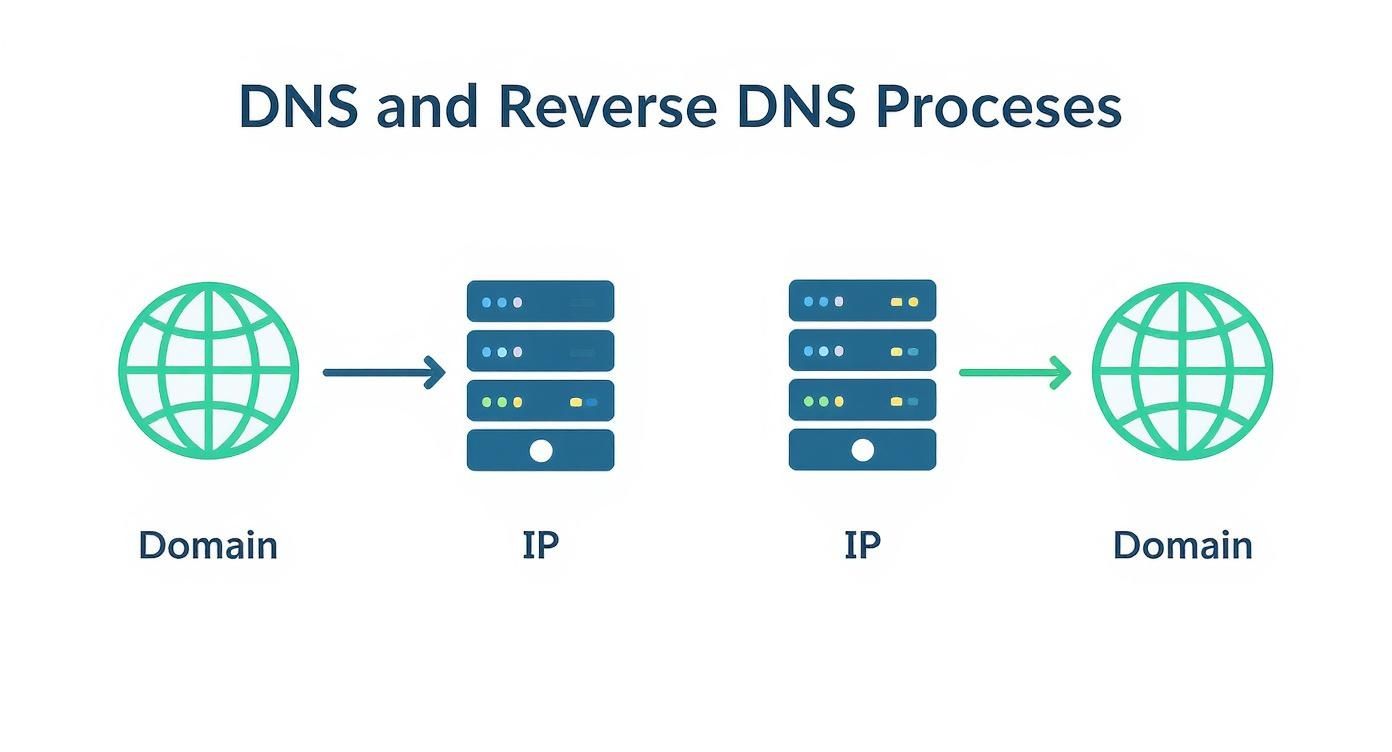
As you can see, they’re perfect mirror images. One starts with a name to find a number, and the other starts with a number to find a name.
The Special Domains for Reverse Lookups
To pull this off, the internet has two special top-level domains set aside just for this task. They act as the official “reverse directories” for every IP address online.
- in-addr.arpa is the designated zone for all IPv4 addresses.
- ip6.arpa handles the same job for the newer (and much longer) IPv6 addresses.
When a computer needs to perform a reverse lookup, it doesn’t just search for the IP address directly. It performs a clever little trick first: it reverses the numbers in the IP address and tacks on one of those special domains. This formatting hack allows the numerical IP address to be read like a regular domain name, letting DNS servers navigate the hierarchy just as they would with a name.
For example, to look up the IPv4 address
192.0.2.1, the system flips it and appends the special domain, turning it into1.2.0.192.in-addr.arpa. This structure allows a DNS resolver to follow the trail from the.arpaservers down to the specific server that holds the record for that IP.
It’s a surprisingly elegant solution that makes the whole process efficient and scalable.
The Step-by-Step Journey of a Query
So, what does this actually look like in action? Let’s follow a reverse DNS query from start to finish, like when an email server gets a new message and wants to check where it really came from.
The Query Begins: A mail server receives an email from the IP address
203.0.113.55. To verify the sender, it kicks off a reverse DNS lookup.IP Reversal: The server immediately flips the IP address and adds the special domain, creating the query:
55.113.0.203.in-addr.arpa.Recursive Resolver: This query is handed off to a recursive DNS resolver—a server whose job is to chase down the answer. It starts at the top, asking the internet’s root DNS servers, “Who’s in charge of the
.arpadomain?”Delegation Down the Chain: The root server points the resolver to the
.arpaservers. Those servers then point to the ones managing203.in-addr.arpa, and so on. The query gets passed down the chain of command, getting more specific with each step.Finding the Authoritative Server: Eventually, this process leads the resolver to the one authoritative DNS server that manages the PTR records for that exact block of IP addresses. This server is usually run by the Internet Service Provider (ISP) or hosting company that owns the IP.
The Answer is Found: The authoritative server checks its records for
55.113.0.203.in-addr.arpaand finds a PTR record that points to a hostname, likemail.example.com. Bingo.Returning the Result: The hostname is sent all the way back up the chain to the original mail server. Now, the server can compare this result with the sender’s stated domain to help decide if the email is legitimate. Understanding these record types is crucial; you can dive deeper into how different records work with our guide on performing an MX record lookup.
This entire round trip happens in the blink of an eye, providing a layer of trust and verification that’s fundamental to how the internet operates securely.
Putting Reverse DNS Lookup into Practice
Okay, enough with the theory. The best way to really get a handle on reverse DNS is to see it in action. You don’t need to be a network whiz to do this, either. There are a few simple ways to perform a lookup, from easy-to-use websites to the classic command-line tools IT pros use every day.
Each method is really just asking the DNS a simple question: “Which hostname belongs to this IP address?” The answer—or lack of one—tells you a ton about how a server is set up and whether it’s a trustworthy source online, especially when it comes to sending email.
Using Online Reverse DNS Tools
For most of us, the fastest and simplest way to run a reverse DNS lookup is with a web-based tool. These sites give you a straightforward search box where you pop in an IP address, hit “Go,” and let them do the heavy lifting. They handle all the technical queries behind the scenes and give you a clean, simple answer.
You’ve got plenty of free options to choose from, like nslookup.io, MXToolBox, or WhatIsMyIPAddress.com. These are perfect for a quick spot-check without messing with a terminal window.
Here’s what a successful lookup looks like on one of these online tools:

The screenshot shows a clear, successful result: the IP address resolves to a hostname. This tells us a proper PTR record is in place, which is exactly what a receiving mail server wants to see.
Interpreting the Results of Your Lookup
When you run a lookup, you’ll get one of two main results. Knowing what each one means is crucial, especially if you’re trying to figure out why emails aren’t getting delivered.
Successful Lookup: The tool spits back a hostname. This is great! It means a PTR record exists for the IP address and is configured correctly. For any mail server, this is a big green checkmark that helps build a good sender reputation.
Failed Lookup: You get an error like “NXDOMAIN” (which stands for Non-Existent Domain) or just nothing at all. This means no PTR record could be found for that IP. If this IP belongs to a server sending email, that’s a major red flag.
A failed reverse DNS lookup is one of the top reasons emails land in the spam folder. Without a valid PTR record, the receiving server can’t verify the sender’s identity and will often treat the email with suspicion, sometimes blocking it completely.
If you’re worried your own emails aren’t making it to the inbox, a failed rDNS check is a likely suspect. This is usually the first place to look when troubleshooting. We dive deeper into this in our guide on how to know if your email is blocked.
Performing Lookups from the Command Line
For those who don’t mind getting their hands a little dirty, command-line tools give you a direct line to the DNS. The two most popular utilities, nslookup and dig, are already built into most operating systems.
1. Using nslookup (Windows, macOS, Linux)
The nslookup command is the old standby for DNS queries. To run a reverse lookup, you just type the command followed by the IP address you want to check:
nslookup 8.8.8.8A successful query returns something like:
8.8.8.8.in-addr.arpa name = dns.google.That name = dns.google line is the PTR record. No such line (or an NXDOMAIN response) means no PTR is configured.
2. Using dig (macOS and Linux)
The dig (Domain Information Groper) command is another powerful tool, often preferred by system administrators because it provides more detailed information. For a reverse lookup, you’ll use the -x flag, which tells dig specifically to hunt for a PTR record:
dig -x 8.8.8.8 +shortThat +short flag strips the noise and returns just the hostname: dns.google. — perfect for piping into scripts or monitoring checks.
For a full record with TTL and authority info, drop the flag:
dig -x 8.8.8.8You’ll see an ANSWER SECTION with the PTR record, along with how long the answer is cached. If you want to verify the full FCrDNS round-trip in one shot, chain the two lookups:
dig -x 8.8.8.8 +short | xargs dig +shortIf the second command returns the IP you started with, FCrDNS passes. If it returns nothing or a different IP, you have a mismatch — and mail servers will treat that the same as no PTR at all.
3. Using PowerShell (Windows)
On modern Windows, Resolve-DnsName is the cleanest option:
Resolve-DnsName 8.8.8.8 -Type PTRAll three tools query the DNS and report back the hostname if one is found. The output might look a bit more technical than an online tool, but the core information is the same. This direct approach is fantastic for scripting and running automated checks across your entire sending IP pool.
How to Fix a Missing or Broken PTR Record
Here’s the catch with PTR records: you don’t control them. The owner of the IP block does. That means you can’t just log into your domain registrar and add one — you have to ask whoever assigned you the IP to publish it on your behalf.
In practice, that’s one of four parties:
- Your hosting provider (AWS, Google Cloud, DigitalOcean, Linode, Hetzner, OVH, etc.)
- Your ISP if you’re on a static business connection
- Your Email Service Provider if you send through a relay like Postmark, SendGrid, or Mailgun on a shared IP
- A Regional Internet Registry (ARIN in North America, RIPE in Europe, APNIC in Asia-Pacific) if you own your own IP block
The fix, by provider
The exact path differs depending on where your IP comes from, but the pattern is the same: prove you control the IP, then tell them what hostname to point it at.
- AWS EC2 / SES: For Elastic IPs sending email, AWS lets you set a reverse DNS record directly. Open a support case in the AWS console (or use the EC2 console’s “Update reverse DNS” action on an Elastic IP). You must also have a matching forward A record pointing back to that IP before AWS will accept the request.
- Google Cloud: Reverse DNS for Compute Engine external IPs is configured via
gcloud compute addresseswith the--enable-rdnsflag, or in the console under the IP’s details. Same requirement: forward A record first. - DigitalOcean: rDNS is set automatically based on your droplet’s name. If your droplet is named
mail.example.com, that’s what the PTR will resolve to. Rename the droplet to fix it. - Hetzner / OVH / Linode: Each has an “rDNS” or “Reverse DNS” field in the IP management section of the control panel. Self-serve, usually live within minutes.
- Shared ESP IPs (SendGrid, Mailgun, Postmark, etc.): The provider sets PTR on their pooled IPs — you don’t need to do anything. If you’re on a dedicated IP, you typically configure rDNS through the ESP’s dashboard or a support request.
What hostname should the PTR point to?
The standard convention is to use a dedicated mail subdomain that exists only for sending, like mail.yourdomain.com or mta1.yourdomain.com. Three rules:
- The hostname must have a matching A record pointing back to the sending IP. This is what makes FCrDNS pass.
- Don’t reuse your main website’s hostname. If
yourdomain.comalready points at a different IP (your web host, a CDN, etc.), the round-trip check will fail. - Avoid generic ISP-issued hostnames like
host-203-0-113-55.provider.net. Gmail and Microsoft both flag these as a low-trust signal even when FCrDNS technically passes.
After the provider publishes the new record, allow up to 24 hours for caches to clear globally. You can verify the change is live with the dig -x command from the section above.
How Reverse DNS Impacts Your Email Deliverability
Every time you send an email, you’re leaving a digital fingerprint—your IP address. For the mail server on the receiving end, that fingerprint is a critical piece of your identity. This is where a proper reverse DNS setup becomes one of the most important tools for ensuring your emails actually land in the inbox. It acts as a first line of defense for mail servers everywhere, helping them filter out spam and phishing attempts.
Think of it like a bouncer at an exclusive club. When your email shows up, the receiving server (our bouncer) glances at your IP address and immediately asks, “Are you who you say you are?” To find out, it performs a reverse DNS lookup to get the hostname associated with your IP.
But the bouncer doesn’t stop there. For a full security check, it then does a forward DNS lookup on that hostname to see if it points back to the original IP address. This two-way verification is a cornerstone of modern email security.
Understanding Forward-Confirmed Reverse DNS
This simple but effective handshake is called Forward-Confirmed Reverse DNS (FCrDNS), sometimes known as Full-Circle Reverse DNS. It’s a verification process that proves your sending IP address and its claimed hostname are legitimately connected. When this check passes, your email gets a major credibility boost.
Here’s how receiving mail servers think through the process:
- Check the IP: An email arrives from a specific IP address.
- Perform rDNS Lookup: The server queries the IP to find its corresponding hostname (its PTR record).
- Perform Forward Lookup: It then looks up that hostname to find its associated IP address (its A record).
- Compare and Confirm: If the IP from the forward lookup matches the original sending IP, the FCrDNS check is a success.
This confirmation tells the receiving server that whoever controls the IP address also bothered to configure their DNS records correctly—a small but significant step that spammers often skip. A successful FCrDNS check is a powerful signal that you’re a legitimate sender.
A missing or mismatched rDNS record is a massive red flag for mail servers. Many, including the giants like Gmail and Microsoft, will either slap your email with a high spam score or reject it entirely if the FCrDNS check fails.
This means that even with perfect email copy and a pristine list, a simple DNS misconfiguration can doom your entire campaign to the spam folder before anyone even sees it.
The Real-World Impact on Your Campaigns
Imagine you’re about to launch a huge marketing campaign. Your server fires off thousands of emails, but a huge chunk of them never make it to the inbox. After digging in, you find out your server’s IP address doesn’t have a PTR record, or worse, it points to a generic ISP hostname like 22-45-167-192.provider.net.
To a receiving mail server, that looks incredibly suspicious. Since it can’t confirm your server’s identity, it defaults to treating your messages as potential spam — and that misclassification cascades into bounces and complaints that further erode your sending reputation. If you’re seeing a sudden inbox-placement drop, rDNS misconfiguration is one of the first things to rule out alongside list hygiene.
Of course, proper rDNS is just one piece of a larger puzzle. It works hand-in-hand with other protocols to build a complete, trustworthy sender identity. To see the full picture, check out our guide on SMTP authentication, which covers SPF, DKIM, and DMARC — the other signals receiving servers weigh alongside PTR. For anyone serious about their email strategy, mastering these technical details is non-negotiable — and pairing them with a clean list (see our sender reputation guide) is what actually moves the needle on inbox placement.
Where Else Does Reverse DNS Pop Up?
Thinking of reverse DNS as just an email security tool is selling it short. That’s like saying a smartphone is only for making calls. In reality, its ability to translate the internet’s machine language—IP addresses—into something we can actually read is a cornerstone for network admins, security analysts, and even marketers trying to make sense of their web traffic.
This simple act of translation brings much-needed clarity to otherwise cryptic data. It turns abstract numbers into real, actionable insights.
Making Sense of Network and Server Logs
Picture a system administrator scrolling through a server log filled with thousands of entries. Most of these logs track activity by IP address, creating a massive, unreadable wall of numbers.
198.51.100.75 accessed /login.php203.0.113.12 initiated connection198.51.100.88 failed authentication
On its own, this is almost meaningless. But once you apply reverse DNS, the log starts to tell a story. The administrator can quickly map those IPs to hostnames, revealing a much clearer picture of what’s happening on their network.
Suddenly, 198.51.100.75 becomes api-worker-3.production.internal, and 203.0.113.12 resolves to crawl-bot.search-engine.com. That immediate context helps them pinpoint which server is throwing an error or recognize legitimate traffic from a known service. This makes troubleshooting infinitely faster and more effective.
A Tool for Cybersecurity and Threat Hunting
For anyone in cybersecurity, reverse DNS is a fundamental part of the investigative toolkit. When a potential threat pops up from an unknown IP address, one of the very first steps is to run a reverse lookup. While a savvy attacker can try to cover their tracks, a PTR record can still offer a crucial breadcrumb.
The lookup might reveal a generic, suspicious-looking hostname, or it could point to a legitimate but compromised server. Either way, that information helps analysts trace an attack’s origin, spot patterns of malicious activity, and make better decisions about blocking entire IP ranges.
Uncovering Insights from Web Analytics
Surprisingly, reverse DNS even has a place in web analytics and B2B marketing. Every time someone visits a website, the server logs their IP address. By running reverse lookups on those IPs, businesses can sometimes identify the specific companies visiting their site.
For example, an IP address might resolve to a hostname like
proxy.major-corporation.com. This is a strong signal that someone from that corporation is looking at your site, which is pure gold for a B2B sales team.
This gives businesses a way to understand their audience on a deeper level, identifying which companies are interested in their products long before anyone fills out a contact form.
It’s interesting to note, however, that most of this analysis still happens on older infrastructure. Even as IPv6 adoption grows, reverse DNS traffic is overwhelmingly dominated by IPv4. In fact, over 99% of PTR queries are still for the older protocol. You can dig deeper into this disparity in the APNIC blog’s analysis of reverse DNS use. From troubleshooting to security, that simple act of resolving an IP to a name provides a foundation of trust and clarity all across the web.
IPv6 Reverse DNS: What’s Different
If you’ve only ever set up rDNS for IPv4, IPv6 looks alien at first. The concept is identical — a PTR record maps an address back to a hostname — but the formatting is dramatically more verbose, and the rules for sending email over IPv6 are stricter.
The ip6.arpa zone and nibble format
IPv4 reverse lookups live under in-addr.arpa and reverse the four octets. IPv6 lookups live under ip6.arpa and use a system called nibble format: every hex digit of the full, uncompressed address becomes its own label, reversed, separated by dots.
Take the IPv6 address 2001:db8::1. Fully expanded, that’s:
2001:0db8:0000:0000:0000:0000:0000:0001Reversed into nibble format with ip6.arpa appended, the PTR query becomes:
1.0.0.0.0.0.0.0.0.0.0.0.0.0.0.0.0.0.0.0.0.0.0.0.8.b.d.0.1.0.0.2.ip6.arpaYes, that’s 32 separate labels. You don’t have to construct this by hand — dig -x does it automatically when you pass it an IPv6 address:
dig -x 2001:db8::1Why IPv6 senders care more, not less
Gmail’s sender guidelines are explicit: any IPv6 address sending email to Gmail must have a valid PTR record, and that PTR must FCrDNS-resolve back to the sending IP. With IPv4 they’re slightly more forgiving (a missing PTR knocks your reputation but isn’t always an instant block). With IPv6, no PTR means your mail bounces with a 550 5.7.1 error.
Microsoft’s Outlook.com / Hotmail policy is the same. If you’re sending from a dual-stack server and your IPv6 PTR isn’t configured, fix it or disable IPv6 sending on your MTA — partial coverage is worse than IPv4-only.
The delegation problem
IPv6 allocations are usually a /64 or larger, which is roughly 18 quintillion addresses per customer. Most hosting providers don’t auto-generate PTR records for an entire /64; you have to request rDNS for the specific addresses you actually send from, or set up a delegated rDNS zone if you’re managing thousands. AWS, Google Cloud, and Hetzner all support per-address IPv6 PTR configuration — check your provider’s docs for the exact mechanism.
Understanding the Security and Privacy Tradeoffs
Reverse DNS is a fantastic tool for verifying network connections and sorting out technical issues, but there’s a catch. Because PTR records are public, they can sometimes create a double-edged sword. The very details that make them great for validation can also, if you’re not careful, give attackers a peek behind the curtain during the early stages of a cyberattack.
Think of it this way: your PTR records can act like a public directory of your network. A poorly chosen hostname can reveal way more than you ever intended.
For example, a hostname like ceo-laptop.company.com is a problem. It doesn’t just confirm that a high-value target exists; it also gives clues about your company’s internal naming conventions. Attackers love this stuff. They can use it to map out your network, pinpointing critical servers and potential weak spots before they even try to get in.

Exposing Personal Information Through Hostnames
The privacy risks don’t stop at the corporate level—they can get personal. Many devices automatically create hostnames based on user or device names, leaving a trail of digital breadcrumbs. This trail can be used to track someone’s movements across different networks. This isn’t just a hypothetical scenario; it’s a real-world privacy issue.
Research has shown just how much this data can reveal. In one study, researchers monitored reverse DNS queries at a U.S. university for six weeks. By connecting the dots between hostnames like brians-air, brians-galaxy-note9, and brians-ipad, they were able to track specific people. This data painted a surprisingly detailed picture of user behavior and location, all based on something as simple as a hostname. You can read more about how researchers tracked individuals using rDNS data.
This potential for exposure really highlights why a thoughtful approach to network setup is so important. You have to balance the convenience of a descriptive hostname against the security and privacy risks it could create.
The core tradeoff is simple: clarity for administrators can become a roadmap for attackers. Every piece of information a hostname provides internally is also available to anyone on the outside performing a reverse DNS lookup.
Mitigating the Risks with Smart Practices
The good news is you can minimize these risks without giving up the benefits of reverse DNS. It all starts with being smart about your hostname conventions. Adopting a more generic and standardized naming scheme is the single most effective way to hide sensitive organizational details.
Here are a few best practices to get you started:
- Avoid Personal Identifiers: Never put employee names, job titles, or other personal details in public-facing hostnames. Something like
user-7815.office.company.comis infinitely better thanjohn-doe-marketing.office.company.com. - Use Generic Naming Conventions: Stick to non-descriptive, systematic names. For instance, use patterns like
srv-db-01.region.company.cominstead of something overly descriptive likeproduction-financial-database.hq.company.com. - Segment Your DNS: If your setup allows, use different naming schemes for your internal and external DNS. This creates another layer of separation and limits the information you expose to the public.
By understanding these vulnerabilities, you get a much more balanced view. Reverse DNS is a powerful and necessary part of the internet, but using it correctly requires a security-first mindset to keep it from becoming an unintentional intelligence leak.
Common Questions About Reverse DNS Answered
Diving into the technical weeds of DNS can definitely spark some questions. To make sure you’re crystal clear on how all this works in practice, let’s walk through some of the most common things people ask about reverse DNS lookups. Here are some straightforward answers to help you put what you’ve learned into action.
Who Is Responsible for Setting Up My Reverse DNS Record?
This is a great question because the answer isn’t always obvious. Your reverse DNS (PTR) record is managed by whoever owns the block of IP addresses you’re using. In almost every situation, that’s going to be your Internet Service Provider (ISP) or your hosting company—think AWS, Google Cloud, or DigitalOcean.
This is one key difference from your standard A records, which you manage yourself in your domain’s DNS settings. For a PTR record, you can’t just set it up on your own. You’ll need to contact your provider and ask them to create or update it for you. Most have a control panel or a simple support ticket system to handle these requests.
Can One IP Address Have Multiple Reverse DNS Records?
Technically, you might be able to configure more than one, but you absolutely shouldn’t. A single IP address should have exactly one PTR record that points to a single, official hostname. Anything else violates long-standing DNS standards.
Having multiple PTR records for one IP creates a mess. It causes unpredictable results, especially for email servers that run Forward-Confirmed Reverse DNS (FCrDNS) checks. If you want reliable performance and solid email deliverability, stick to a strict one-to-one mapping between your IP and its hostname.
Does a Failed Reverse DNS Lookup Mean a Website Is Malicious?
Not always. A failed reverse DNS lookup just tells you there’s no PTR record configured for that IP address. It often comes back with an “NXDOMAIN” error. While it’s true that many spammy or malicious servers have sloppy configurations and lack rDNS, so do plenty of perfectly legitimate ones.
For example, a server that’s part of a content delivery network (CDN) or a personal server that never sends email might not have rDNS set up, and that’s perfectly fine.
However, for any server that sends email, a missing rDNS record is a massive red flag. It’s a huge blow to its sender reputation and strongly suggests a poorly configured—and potentially untrustworthy—source.
How Is Reverse DNS Different from a WHOIS Lookup?
People often mix these two up, but they’re completely different tools for different jobs. Both are useful for network and security tasks, but they answer fundamentally different questions.
A reverse DNS lookup is purely technical. It takes an IP address and translates it into a hostname. It answers the question, “What’s the name of the server at this IP address?”
A WHOIS lookup is an administrative search. It checks a public database to find out who registered a domain name or a block of IP addresses. It answers the question, “Who owns this domain or IP address?”
Here’s a simple way to think about it: rDNS tells you the server’s name, while WHOIS tells you the server’s owner. Both are valuable, but they operate in totally separate areas.
A correctly configured PTR record gets you past the first deliverability checkpoint. The next one is whether the addresses on your list actually exist. Truelist verifies email addresses in real time — syntax, MX, disposable, role, and SMTP checks — so you stop hitting bounces and spam traps that erode the sender reputation your PTR record is supposed to protect. The free tier covers 100 validations, and paid plans are flat monthly with unlimited validations. Drop the verify_inline API into your signup form, or clean an existing list in a single upload.