
 Claude
  Perplexity
A Practical Guide to MX Record Lookup
A practical guide to MX record lookup. Learn how to query, interpret, and troubleshoot email delivery issues with real-world examples and expert tips.
TL;DR: A practical guide to MX record lookup. Learn how to query, interpret, and troubleshoot email delivery issues with real-world examples and expert tips.
When you send an email, how does it magically land in the right inbox? It’s not magic—it’s the Mail Exchange (MX) record. Think of it as the internet’s specialized address book just for email. Performing an MX record lookup is like asking the DNS, “Where should I deliver mail for this specific domain?” It’s a fundamental process for anyone managing email systems or troubleshooting delivery problems.
What MX Records Are and Why They Matter

MX records are special instructions in your domain’s DNS settings that point to the mail servers designated to receive emails on your behalf. Without a correctly configured MX record, incoming emails have no directions. They simply won’t arrive.
Every time someone hits “send” on an email to you, their mail server performs an MX record lookup on your domain. This query tells it exactly which server—or servers—to connect to. Getting this right is absolutely non-negotiable for reliable communication.
Anatomy of an MX Record
Let’s break down what an MX record actually contains. It’s a simple but powerful entry with a couple of key parts that work together to ensure email gets delivered efficiently and reliably. This structure is what makes your email system resilient.
Here’s a quick reference table to make sense of the components.
| Component | Example Value | Purpose |
|---|---|---|
| Hostname | aspmx.l.google.com | The address of the mail server that accepts the email. |
| Priority | 10 | A number indicating the order of preference. Lower numbers are higher priority. |
| TTL | 3600 | “Time to Live” in seconds, telling servers how long to cache the record. |
Each part plays a critical role. The hostname is the destination, and the priority number creates a smart, ordered delivery system. You can get more technical details on how this routing works from resources like DNS Checker.
So, How Does Priority Work?
The priority number is brilliant because it builds in redundancy. A lower number means a higher priority.
Imagine you have two mail servers set up:
- A primary server with a priority of 10.
- A backup server with a priority of 20.
Sending mail servers will always try to deliver to the server with priority 10 first. If that server is down or unreachable for any reason, they’ll automatically try the next one in line—the server with priority 20.
This priority system is the secret to email resilience. It provides a built-in failover, ensuring that if your main server has a problem, you won’t miss important messages.
Why You Need to Perform an MX Record Lookup
Checking your MX records isn’t just for initial setup; it’s a crucial diagnostic tool.
Here’s a common scenario: You’re migrating your company’s email from a basic web hosting plan to a professional service like Google Workspace or Microsoft 365. The migration process requires you to update your domain’s MX records to point away from the old host and toward the new one.
After you make that change, an immediate MX record lookup is essential. It’s the only way to confirm that the new settings have propagated across the internet and that mail is now being routed correctly. If you skip this step, you could face a silent but complete email outage, where you simply stop receiving messages without any warning.
Using Online Tools for a Quick MX Lookup
Sometimes you just need a fast answer, and digging into the command line feels like using a sledgehammer to crack a nut. That’s where online MX record lookup tools come in. They’re my go-to for a quick, no-fuss check on a domain’s email setup.
These web-based tools are lifesavers for fast diagnostics. I’ve used them countless times, whether it’s to double-check a client’s configuration before a big email campaign or to help a small business owner figure out why their contact form submissions are bouncing. You just pop in a domain name, and it gives you an instant, easy-to-read snapshot of how its email is routed.
Performing Your First Online Lookup
Getting the hang of these tools is a breeze. Most good ones, like DNS Checker or MXToolbox, have a big, obvious search bar right on the homepage. All you need to do is type the domain you’re curious about (like yourbusiness.com) and hit the button. The site does all the heavy lifting in the background.
In a matter of seconds, you’ll see a list of the MX records for that domain. It’s this immediate feedback that makes them so valuable, especially when you’ve just made a change to your DNS and are anxiously waiting to see if it worked.
Here’s a great example of what you’ll see. This screenshot shows a typical result from an online lookup, laying out the mail servers for the domain in question.

This kind of visual report immediately confirms the primary and backup mail servers and their priority levels. You can see the intended email flow in a single glance.
Understanding the Results
When you get your results back, you’ll see a few key bits of information. It can look a little technical at first, but each piece tells a crucial part of the story about how email gets delivered to that domain.
Let’s break down what you’re looking at:
- Hostname: This is simply the address of the mail server that handles incoming email. If a company uses Google Workspace, for example, you’ll see something like
aspmx.l.google.com. - Priority: This is a number that tells sending servers which mail server to try first. The rule is simple: the lower the number, the higher the priority. The server with the lowest number is the primary one. Higher numbers are for backups.
- TTL (Time To Live): Measured in seconds, this tells other servers how long to “remember” this record before they need to check again for updates. A common TTL is 3600, which is one hour.
Pro Tip: A classic sign of a professional email setup (like Google or Microsoft 365) is seeing multiple records with low priority numbers, such as 1, 5, and 10. This is a deliberate configuration for redundancy and reliability.
Now, if a lookup shows no records at all, you’ve found a serious problem. It means email servers trying to send mail to that domain have no idea where to go, and every single email will fail. On the other hand, seeing a hostname you don’t recognize might point to a misconfiguration or a recent migration that isn’t quite finished. An online tool helps you spot these critical issues in seconds, letting you fix them before they disrupt communication.
Going Deeper with Command-Line Tools
For anyone who works in a technical role, from sysadmins to developers, those handy online lookup tools are great for a quick peek. But when you’re troubleshooting a real problem, they often gloss over the raw details you actually need.
If you need unfiltered data and precise control, the command line is where you turn. It’s the difference between looking at a map and actually being on the ground.
Why Bother with the Terminal?
Command-line utilities talk directly to the Domain Name System (DNS) without a web interface getting in the way. This means you see exactly what a sending mail server sees—an invaluable perspective when you’re trying to figure out why emails aren’t being delivered. You get the raw, unvarnished data, which is perfect for scripting, logging, or just getting straight to the source of an issue.
This graphic breaks down the essential steps of any MX record lookup, a process that’s the same in principle whether you’re using a website or typing into a terminal.
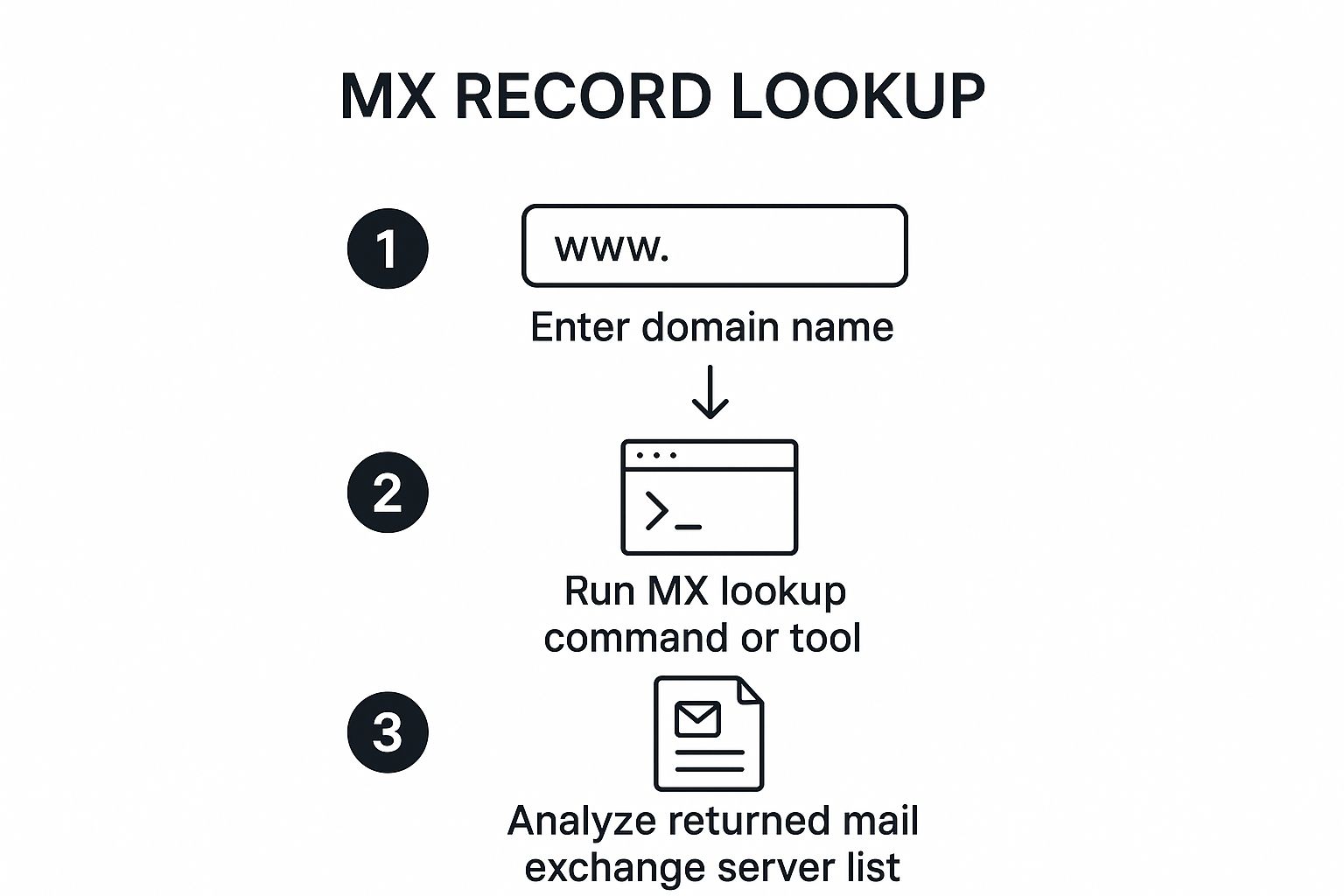
It shows the simple journey from entering a domain name to getting back the list of mail servers, which is the core of what we’re doing.
Your Go-To Commands
If you’re on Linux or macOS, the dig command (short for Domain Information Groper) is your workhorse. It’s incredibly powerful and flexible. For Windows users, the built-in equivalent is nslookup (Name Server Lookup), which gets the same job done.
Both tools let you ask for a very specific type of record. Instead of getting a dump of every DNS record for a domain, you can tell them, “Just show me the MX records.” It’s a much more efficient way to work when you’re zeroed in on an email problem.
Here are the commands worth knowing — each one returns MX records for example.com:
# macOS / Linux — concise output, just hostnames and priorities
dig MX example.com +short

# Same thing, but ask a specific resolver (Google DNS) to bypass local caching
dig MX example.com @8.8.8.8 +short

# Full output if you need the TTL and authority section
dig MX example.com

# Windows PowerShell — built-in, no install needed
Resolve-DnsName -Type MX example.com

# Classic nslookup, works on every OS
nslookup -type=mx example.com

# host on Linux / macOS — shortest possible syntax
host -t MX example.com
For scripts and services, every major language can query MX records without shelling out to dig:
// Node.js — built-in dns module, returns priority + exchange
import { promises as dns } from 'node:dns'

const records = await dns.resolveMx('example.com')
// [ { priority: 10, exchange: 'mail.example.com' }, ... ]
console.log(records.sort((a, b) => a.priority - b.priority))
# Python — uses the dnspython library (pip install dnspython)
import dns.resolver
answers = dns.resolver.resolve('example.com', 'MX')
for rdata in sorted(answers, key=lambda r: r.preference):
print(rdata.preference, rdata.exchange)# Ruby — standard library, no gems needed
require 'resolv'
Resolv::DNS.open do |dns|
dns.getresources('example.com', Resolv::DNS::Resource::IN::MX)
.sort_by(&:preference)
.each { |mx| puts "#{mx.preference} #{mx.exchange}" }
endProgrammatic lookups power queue routing, bounce analysis, and validation pipelines. For more on the pipeline side, see our deep dive on the validate email API.
The real magic of the command line is its precision. You aren’t just asking, “What are the records?” You’re asking a specific question, like, “What are the MX records for this domain, according to this specific name server?” That’s a level of control most web tools just can’t match.
Putting It to Work in the Real World
Let’s walk through a common scenario. You’ve just changed a client’s MX records to point to a new email provider. DNS changes don’t happen instantly; they have to propagate across the internet. An online tool might show the new records because its query happened to hit a server that updated quickly.
But what if your client’s users are still having trouble? Their local DNS resolver could be hanging onto the old, cached records.
This is where the command line shines. You can directly query a specific DNS server—like your company’s internal one or a public resolver like Google’s—to see exactly what information it’s giving out.
This helps you answer critical questions like:
- Has our own network’s DNS server picked up the change yet?
- Are we getting different answers from our main nameserver versus a public one?
- What’s the exact TTL (Time to Live) on the old record? Knowing that tells us precisely when it’s set to expire from caches.
Suddenly, you’re not just waiting and hoping. You’re actively investigating. If you think the problem is with the DNS provider itself, you can query their nameservers directly to see if the records are correct at the source. This is how you solve the really stubborn email delivery puzzles and get definitive answers when everyone else is just guessing. You can even build simple scripts to automate these checks, creating a powerful, custom monitoring system for your email infrastructure.
So, you’ve run an MX record lookup. Now what? The output might seem a bit cryptic at first—just a list of server names and numbers—but it’s actually a roadmap to a domain’s email delivery system. Knowing how to read that map is key to troubleshooting email problems or just confirming everything is set up correctly.
Essentially, you’re looking at two main pieces of information for each record: the priority number and the hostname. These two work in tandem to create a smart, resilient email system. The rule is simple: a lower priority number means a higher preference. Mail servers always try to deliver to the server with the lowest number first.
Decoding Priority and Redundancy
Think of the priority numbers as a “plan B” for your email. The main server, the workhorse that handles all the day-to-day email traffic, will have the lowest priority number—often a 10 or even a 1. Any other records you see with higher numbers (like 20, 30, and so on) are your backup servers.
- Primary Server: This is the record with the smallest priority value. Under normal circumstances, all your mail flows through here.
- Backup Server(s): These have higher priority values. They’re just waiting on the sidelines, ready to jump in if the primary server ever becomes unreachable.
This tiered setup is a cornerstone of reliable email delivery. If your primary server goes offline for maintenance or hits an unexpected snag, sending servers won’t just give up. They’ll automatically try the next server in the priority list, ensuring that email keeps flowing. This kind of robust configuration is also a big deal for your sender reputation and is part of what makes it possible to check the validity of an email address before you send a campaign.
Recognizing Common Setups
After you’ve done a few lookups, you’ll start to see familiar patterns emerge, especially for the big email providers. For instance, a domain using Google Workspace will almost always have a list of MX records pointing to various Google servers, like aspmx.l.google.com and alt1.aspmx.l.google.com, each with a different priority. It looks complex, but it’s a setup built for massive scale and near-perfect uptime.
You’ll see similar patterns for other major services like Microsoft 365 or Zoho Mail. Recognizing these helps you instantly identify who is managing a domain’s email and whether their records match the provider’s official guidelines.
To help you get a feel for what to look for, here’s a quick comparison of some typical MX record configurations.
Common MX Record Configurations
| Email Provider | Typical Primary Server Priority | Example Hostname Pattern | Use Case |
|---|---|---|---|
| Google Workspace | 1, 5, 10 | aspmx.l.google.com, alt1... | Businesses of all sizes using Google’s cloud email infrastructure. |
| Microsoft 365 | 0, 10 | yourdomain-com.mail.protection.outlook.com | Companies integrated into the Microsoft ecosystem. |
| Zoho Mail | 10, 20 | mx.zoho.com, mx2.zoho.com | Small to medium-sized businesses looking for an affordable suite. |
| On-Premise/Self-Hosted | 10 | mail.yourdomain.com | Organizations managing their own physical or virtual mail servers. |
Spotting these hostname patterns is a great shortcut. If you see an outlook.com address, you know it’s Microsoft. If you see zoho.com, it’s Zoho. It makes the process much faster.
A few more patterns worth memorizing:
- Google Workspace —
smtp.google.com(newer, single record) or the classic set withaspmx.l.google.complusalt1throughalt4. - Microsoft 365 —
yourdomain-com.mail.protection.outlook.com. The hyphenated domain in front is the giveaway. - Zoho Mail —
mx.zoho.com,mx2.zoho.com,mx3.zoho.com. EU tenants getmx.zoho.eu. - ProtonMail —
mail.protonmail.chandmailsec.protonmail.ch. - Fastmail —
in1-smtp.messagingengine.com,in2-smtp.messagingengine.com. - Amazon SES inbound —
inbound-smtp.us-east-1.amazonaws.com(region varies).
Records that don’t fit any of these patterns usually mean a self-hosted server or a smaller regional provider — both worth a closer look before trusting deliverability.
A single MX record pointing back to the main domain (like
mail.yourdomain.com) is a classic sign of a smaller business or someone hosting their own email server. It works, but it’s a bit of a tightrope walk—there’s no built-in failover if that one server goes down.
Interestingly, this global email system is more centralized than you might think. A 2023 analysis found that 34 of the top 100 most-used MX records were registered in the United States, showing just how much of the world’s email relies on infrastructure in a handful of places. You can dig into the full research on who runs email communications to see more. By recognizing these common hostnames, you can quickly assess whether a domain’s email setup is standard or custom.
How MX Records Fit Into the Delivery Pipeline
An MX lookup is the first link in a chain. Knowing what happens after it makes troubleshooting easier, because most “email is broken” problems aren’t actually MX problems — the MX record is just the easiest thing to inspect first.
The full path from “send” to “delivered”:
- DNS query — The sending server asks, “what are the MX records for
recipient.com?” This is the lookup you’ve been doing all along. - Pick the lowest priority — The sender sorts the returned records by preference and picks the lowest number. Ties are broken randomly to balance load.
- Open an SMTP connection — The sender opens a TCP connection to port
25on that mail server’s hostname. - SMTP conversation — The two servers exchange
HELO/EHLO, thenMAIL FROM, thenRCPT TO, thenDATA. Authentication (SPF, DKIM, DMARC) gets checked along the way. For a walkthrough of what’s actually happening here, read about SMTP authentication. - Accept or reject — The receiving server either queues the message for delivery, defers with a
4xxcode, or rejects with a5xx(bounce).
If the MX record is missing or wrong, step 1 or 2 fails and nothing else happens. If the MX record points to the right server but that server rejects messages, you’ll see a bounce with an SMTP-level error code — and you’ll need to dig deeper than the MX record to find the cause. Our guide on why emails bounce back covers what each bounce code actually means.
MX Records and Email Validation
Every reputable email validator starts with an MX lookup. The reason is simple: if a domain has no MX records, no address there can receive mail. So before checking whether user@example.com is a real mailbox, validators check whether example.com can accept mail at all.
That single check filters out a surprising amount of garbage — typo domains (gnail.com), expired domains, and domains never set up for email. Past that, validators do an SMTP-level handshake against the MX hostname to test whether the mailbox exists. If you’re rolling your own, our guide on how to see if an email address is valid walks through the steps. If you’d rather call an API, the validate email API post covers what to look for.
A clean MX record is also a signal of domain hygiene. Domains with weird or self-pointing MX are statistically more likely to be disposable or abandoned — which is why MX patterns feed into sender reputation scoring.
Fixing Common Email Problems with MX Lookups

When emails just vanish or bounce back with cryptic error messages, a broken MX record is almost always the silent culprit. Think of an MX record lookup as more than just a simple check; it’s your best first-response tool for figuring out why your email has stopped working.
Instead of just guessing, a quick lookup gives you a real diagnosis. It helps you connect the dots between the symptoms you’re seeing—like those frustrating bounced messages or a dead-silent inbox—and the actual root cause hiding in your DNS settings. This quickly turns a mysterious problem into a clear, solvable one.
Diagnosing Missing Records After a Domain Transfer
Here’s a classic scenario I see all the time: someone transfers their domain to a new registrar and forgets to move their DNS records over. Their website might pop right back up, but their email just completely dies. Anyone trying to send them a message gets an immediate bounce-back, usually with an error like ”550 No Such User Here.”
This happens because, without any MX records, the sending mail server has absolutely no idea where to deliver email for your domain.
- The Symptom: All incoming emails are bouncing back, and it’s happening instantly.
- The Diagnosis: Running an MX record lookup on your domain shows nothing. It’s completely blank.
- The Fix: You’ll need to log in to your new domain registrar’s control panel and add the correct MX records given to you by your email provider (like Google Workspace or Microsoft 365).
This one simple check can save you hours of panic and wasted time on support calls. It pinpoints the exact problem in seconds.
Correcting Hostname and Priority Errors
You’d be surprised how often a small typo can bring your entire email system to a grinding halt. A common mistake is a simple copy-paste error when entering the mail server’s hostname. Another frequent issue is setting the priority numbers wrong, which can cause your backup server to get all the mail instead of your main one.
An incorrect hostname is like having a typo in a street address—the postal service knows the city but can’t find the house. Your email will never arrive.
A lookup is your best friend for catching these mistakes. It shows you exactly what the rest of the internet sees. If the hostname in the lookup result doesn’t perfectly match the one your email provider gave you, you’ve found your problem. Same for the priority—if the numbers are mixed up, you know exactly what to change.
Keeping these settings accurate is fundamental for good email deliverability, and it’s a big part of learning how to verify emails and ensure they reach their destination.
By making an MX record lookup your first step, you go from being a passive victim of email issues to an active troubleshooter. It’s the definitive move to make when your inbox goes quiet, letting you hunt down and fix the most common causes of email failure with confidence.
The “I Just Changed My MX Records” Scenario
You updated your records ten minutes ago. The change looks correct in your DNS dashboard. But mail still isn’t flowing to the new server — or worse, some users get the new behavior and others don’t.
That’s caching. Every resolver between the sender and your authoritative nameservers caches the answer for as long as the TTL says. If your previous TTL was 86400 (24 hours), parts of the internet will keep using the old record for the next day.
The fix is to plan ahead:
- Lower the TTL a day before the change. Drop it to 300 or 600. Wait for the old high TTL to expire before making the actual record change.
- Query multiple resolvers during the cutover.
dig MX example.com @8.8.8.8,@1.1.1.1, and@9.9.9.9confirm Google, Cloudflare, and Quad9 are all seeing the new records. - Keep the old server accepting mail for a few days. Some senders will still hit it during propagation.
- Raise the TTL back up after things settle. 3600 is reasonable for steady state.
The “Records Look Right But Mail Still Bounces” Scenario
If the MX lookup returns exactly what you expect but messages still bounce, the problem has moved past DNS. Common culprits:
- The mail server is up but rejecting connections from the sender’s IP — check firewalls and IP allowlists.
- SPF, DKIM, or DMARC is misconfigured and receivers are rejecting for authentication failure. The bounce message will usually say so.
- The receiving server has the domain in a blacklist or is silently filtering to spam — use a bounce checker to investigate.
- Reverse DNS doesn’t match your sending hostname. See what reverse DNS lookup is.
The MX record got the message to the right server. After that, deliverability becomes a separate problem.
Got Questions About MX Records? We’ve Got Answers.
Let’s wrap up by tackling some of the most common questions people have when they start digging into MX records. Think of this as the expert cheat sheet to clear up any confusion without needing to parse dense, technical documentation.
How Long Until My MX Record Changes Go Live?
When you update your MX records, the change isn’t instant. It has to spread across the internet’s DNS system, a process called propagation. This can be quick, but sometimes it takes up to 48 hours.
The timing all comes down to a setting called TTL (Time to Live). During this waiting period, some email servers will see your old record and some will see the new one. That’s why it’s so important to plan any mail server migrations carefully—you don’t want emails getting lost in limbo.
Can I Have More Than One MX Record?
Absolutely. In fact, you should. Setting up multiple MX records is a standard best practice for making your email system more resilient. You simply create a primary record and then one or more backups with different priority numbers.
This is your email’s safety net. If your main server ever goes offline, incoming mail servers will automatically try the next server in the priority list. It’s a simple way to make sure you don’t miss critical messages during an outage.
What If a Domain Doesn’t Have Any MX Records?
If a domain has no MX records, it’s basically telling the world it doesn’t accept email. When a server tries to send a message to that domain, it won’t find any delivery instructions and will simply give up. The email fails and bounces right back to the sender.
While some very old systems might try a fallback and look for an ‘A’ record, this is not standard practice and is completely unreliable. For consistent email delivery, proper MX records are non-negotiable. A lack of MX records is a surefire way to get a high bounce rate. You can investigate why your emails are bouncing to keep your sender reputation clean.
What’s the Difference Between an MX Record and an A Record?
It’s a simple but crucial distinction.
An A record (or Address record) points a domain name to a specific IP address. Its main job is to direct web traffic—think of it as the street address for a website.
An MX record (or Mail Exchanger record), however, is built exclusively for email. It tells sending servers which mail server is responsible for handling mail for that domain. The MX record directs the email, not the web browser.
Can an MX Record Point to an IP Address?
No, and this is a common gotcha. The MX record specification requires a hostname, not an IP address. If you try to put an IP into your MX record, sending servers will treat it as invalid and your mail will bounce.
If you’re running your own mail server, the workflow is to create an A record (or AAAA record for IPv6) that maps a hostname like mail.yourdomain.com to the server’s IP, then point your MX record at mail.yourdomain.com. Two records, one purpose.
Does the Order of MX Records in My DNS Panel Matter?
The order you see them listed in your DNS provider’s interface doesn’t matter. What matters is the priority number attached to each record. Sending servers always sort by priority — lowest first — regardless of the order you typed them in. If two records share the same priority, sending servers pick between them randomly, which is how providers like Google Workspace spread load across aspmx, alt1.aspmx, and so on.
Why Do Some Domains Have a “Null MX” Record?
If you ever see an MX record that looks like 0 . (priority zero, hostname is a single dot), that’s a null MX. It’s defined in RFC 7505 and it explicitly tells the world “this domain does not accept email.” Companies use it on domains that are purely for web traffic, redirects, or internal tooling. It’s a polite signal that prevents senders from wasting effort and helps validators flag the address as undeliverable instantly. If you’re checking the format of an email address before sending, a null MX is a hard “no.”
Is an MX Record Lookup Enough to Confirm an Email Is Real?
No. An MX lookup confirms the domain accepts mail, but it tells you nothing about whether a specific mailbox exists. dragons@example.com and ceo@example.com will both pass an MX check as long as example.com has any MX record at all. To verify a mailbox you also need an SMTP-level handshake — and even that doesn’t catch catch-all domains that accept mail for every address. For real list hygiene, combine MX, SMTP, syntax, and reputation checks together.
Ready to ensure every email you send lands in the inbox? With Truelist, you can clean your lists, reduce bounce rates, and protect your sender reputation — with pay-as-you-go credits that never expire, plus unlimited plans for high-volume senders. Start verifying for free and see the difference.