 Claude
  Perplexity
Format of Email Address: Rules, Examples, and Validation
Learn the correct format of an email address — local-part rules, domain structure, valid vs invalid examples, and how to validate addresses automatically.
TL;DR: An email address follows the format local-part@domain. The local-part identifies the mailbox (up to 64 characters), and the domain identifies the mail server. This structure is defined by RFC 5321.
An email address follows the format local-part@domain. The local-part (before the @) identifies the mailbox — it can contain letters, numbers, dots, hyphens, and underscores, up to 64 characters. The domain (after the @) identifies the mail server — it must be a valid hostname with a TLD like .com or .org. This structure is defined by RFC 5321 and hasn’t changed since 1982.
Understanding this format matters whether you’re building signup forms, running email list cleaning, or troubleshooting delivery issues. Let’s break down each part of the format of an email address and the rules that govern it.
Cracking the Code of Email Address Formats

The easiest way to think about an email address is to compare it to a physical mailing address. It gives a mail server all the information it needs to deliver a digital package to the right person at the right location. This simple analogy makes the technical bits and pieces much easier to grasp.
The Local-Part and The Domain
The local-part is everything that comes before the @ symbol. Think of it as the recipient’s name or their specific apartment number on a mailbox. It points to a unique mailbox within a much larger mail system. So, in jane.doe@example.com, the local-part is jane.doe.
The domain is everything that comes after the @ symbol. This part acts like the street address or the building where all the mailboxes are located. It tells mail servers exactly where to route the message. In our example, example.com is the domain.
At its core, the email format is a brilliant piece of digital architecture. The
@symbol acts as the bridge, literally meaning ‘at’, connecting the specific user (local-part) with their digital location (domain).
Getting a handle on this fundamental structure is the first step. While the local-part@domain format seems straightforward on the surface, there are specific rules—and a few surprising exceptions—that dictate what’s allowed in each part. These rules make sure every address is not only unique but also works correctly across countless email providers worldwide.
Email Address Components at a Glance
Here’s a quick summary of the essential parts that make up a standard email address format.
| Component | Purpose | Example |
|---|---|---|
| Local-Part | Identifies the specific user or mailbox. | jane.doe |
| @ Symbol | The separator, meaning “at”. | @ |
| Domain | Specifies the mail server’s location. | example.com |
This simple breakdown gives us a solid foundation. As we dig deeper, you’ll see how things like special characters, length limits, and international standards add fascinating layers of complexity to this everyday format.
Exploring the Local-Part Beyond the Basics

Most of us think of the part before the @ symbol—the local-part—as pretty straightforward. It’s usually just a name, maybe with a number or a dot. But what’s technically allowed by the official rules is far more interesting and complex.
This flexibility can be a real headache. While it gives users creative freedom, it often trips up outdated web forms and validation scripts. A system programmed to only accept something simple like john.smith might wrongly reject a perfectly valid but unusual address. For anyone building online forms or managing email lists, knowing these edge cases is key to avoiding frustrated users and lost signups.
When Special Characters Are Allowed
One of the biggest misconceptions about email addresses is the local-part’s ability to contain more than just letters and numbers. The official standards actually permit a whole host of symbols you’d never expect to see.
But there’s a catch. Just because a character is technically allowed doesn’t mean it will work everywhere. Most email providers and websites enforce their own, stricter rules for the sake of simplicity and security. One way the official rules accommodate odd characters is by allowing the entire local-part to be wrapped in double quotes.
For instance, this is a technically valid email address:
"jane doe"@example.com
This quoted local-part format makes it possible to include characters that would normally be illegal, like spaces. It’s pretty rare, but seeing one can completely break a basic validation script that isn’t built to handle it. On a related note, people often wonder how systems treat uppercase vs. lowercase letters. If you want to dive deeper, our guide on whether emails are case sensitive breaks it all down.
According to the official RFC standards, the local-part of an email can be up to 64 characters long. It’s a surprisingly generous limit that most people never come close to hitting.
The Power of Plus Addressing
A far more common—and incredibly practical—variation you’ll see is plus addressing. Sometimes called sub-addressing, this feature lets you create disposable, trackable versions of your main email address instantly.
It’s simple. You just add a plus sign (+) followed by any keyword after your username but before the @. Any mail sent to that new, modified address lands right in your normal inbox.
Think of the possibilities:
- Signing up for a newsletter:
my.email+newsletter@domain.com - Tracking an online purchase:
my.email+shopping@domain.com - Filtering work-related mail:
my.email+projectx@domain.com
This little trick is a genuine game-changer for inbox organization. You can create filters to automatically sort incoming mail based on the alias it was sent to. It’s also a great way to see which companies are selling your data—if you suddenly get spam sent to my.email+shopping@domain.com, you know exactly who the culprit is.
Understanding the Domain and Its Global Reach
Think of the part after the @ symbol as the digital address of the post office where your recipient’s mailbox lives. This domain isn’t just a name; it’s a precise instruction that tells mail servers around the globe exactly where to deliver your message.
Domains follow a clear hierarchy. Take mail.example.com for example. Here, com is the Top-Level Domain (TLD), example is the primary domain name, and mail is a subdomain. This layered structure is what keeps the internet organized and scalable. If you’re curious about the mechanics behind this, it’s worth understanding the basics of how domain name registration works and how registrars make these names available to everyone.
Rules for a Valid Domain Name
Just like the local-part, the domain has its own set of non-negotiable rules. These guidelines are crucial for ensuring emails get where they’re supposed to go without a hitch.
Here’s what you need to know:
- Allowed Characters: Domains are pretty restrictive, allowing only letters (A-Z), numbers (0-9), and hyphens (-).
- No Leading or Trailing Hyphens: A domain can’t begin or end with a hyphen. So,
example.comis fine, but-example.comwon’t work. - Length Limits: Each part of the domain (like
exampleorcom) can be up to 63 characters long.
These rules are the backbone of the Domain Name System (DNS), which acts as the internet’s giant address book. When you send an email, the sending server needs to look up the recipient’s mail server. We cover this fascinating process in our guide on how to perform an MX record lookup.
Embracing a Global Audience with IDNs
For a long time, domain names were stuck with the basic English alphabet. This was a major roadblock for anyone whose native language used different characters. Thankfully, Internationalized Domain Names (IDNs) came along to change that.
IDNs open the door for domains to include non-Latin characters, making addresses like café.com or 例子.org possible. This was a huge step forward, making email far more accessible and intuitive for people all over the world.
You might see an address like
josé@café.comand think it breaks the rules. But there’s a clever trick happening behind the scenes. The browser or email client translates it into a compatible format called Punycode. For instance,café.comactually travels across the internet asxn--caf-dma.com.
This translation system ensures that special characters like é or 例 are converted into the standard A-Z, 0-9, and hyphen format that the internet’s core infrastructure can handle. The email gets delivered reliably, and the user sees the address in their native language. It’s a perfect example of how the internet continues to evolve to connect a truly global, multilingual community.
The Official Rulebook: RFC Standards and Limits
Every global system needs a common language to work properly. For email, that language is defined in a series of technical documents called RFCs (Request for Comments). Think of them as the official rulebook for the internet, making sure an email sent from a server in one country can be correctly understood and delivered by another server halfway across the world.
When it comes to the anatomy of an email address, the most important document is RFC 5322. This standard lays out the precise technical grammar for what makes an address valid. It’s the reason an email provider in Japan can flawlessly process an address from a user in Brazil. These standards are the bedrock of email’s incredible reliability.
Understanding Key Character Limits
To keep things consistent across all email systems, the RFC standards set a few non-negotiable limits. These aren’t just random numbers; they’re carefully chosen constraints that prevent errors and ensure every email address can be processed efficiently.
Here are the two most important limits to know:
- The Local-Part Limit: The part before the
@symbol can be a maximum of 64 characters long. - The Total Address Limit: The entire email address, from the first letter to the last, cannot exceed 254 characters.
Most people will never come close to hitting these caps, but for developers building validation tools, they are fundamental. Any system that handles emails must be able to process addresses up to these maximum lengths to be fully compliant.
Following these universal rules is non-negotiable for email providers. Adhering to RFC 5322 ensures that an address created on one platform will be recognized and accepted by every other platform on the planet, creating a truly global communication network.
The Origins of Email Formatting Rules
These rules weren’t created overnight. They evolved from the earliest days of the internet to solve very real engineering challenges. The modern email address format was actually invented back in 1971 by Ray Tomlinson, an engineer who first used the @ symbol to separate a user’s name from their host machine on the ARPANET project.
This brilliant, simple idea was later standardized in 1982 by RFC 821, which defined the Simple Mail Transfer Protocol (SMTP) and solidified the user@domain structure we all know today. You can dive deeper into the fascinating history of email’s evolution to see how those early decisions shaped the system we rely on. This structured approach, refined over decades, is exactly why email remains such a dependable and universal tool.
Real-World Examples of Valid and Invalid Emails
Seeing the rules in action makes them easier to apply. Here are concrete examples of what works, what doesn’t, and why — useful whether you’re building a signup form or cleaning a marketing list.
Valid But Uncommon Formats
Some addresses look wrong but are technically valid:
jane.doe+newsletter@example.com: The plus sign is legal. People use it to create aliases for filtering emails without creating a new account."user name"@example.com: Quoting the local part allows spaces and special characters, though very few providers support this in practice.user.name-01@example.co.uk: A standard mix of letters, numbers, periods, and hyphens with a country-code TLD.
Common Invalid Formats
These are the mistakes that cause bounces every time:
user..name@domain.com: Consecutive dots in the local part are not allowed.user@.domain.com: A domain name cannot start with a dot.username@domain: Missing its TLD (like.comor.net).username.domain.com: Missing the@symbol entirely.
Quick Reference Table
| Email Address | Status | Reason |
|---|---|---|
hello@example.com | Valid | Standard, widely accepted format. |
hello..world@example.com | Invalid | Consecutive dots in the local part. |
hello-world@sub.domain.org | Valid | Hyphen and subdomain are both allowed. |
hello@domain | Invalid | Missing a TLD like .com or .org. |
"hello world"@example.com | Valid | Quoted local part allows spaces (rarely supported). |
hello @example.com | Invalid | Space before the @ symbol. |
hello+alias@example-domain.com | Valid | Plus sign for aliasing, hyphen in domain. |
hello@.example.com | Invalid | Domain starts with a dot. |
How to Validate Email Addresses the Right Way
So, you know the rules behind a valid email format. But how do you actually check if an address someone gives you is correct? For many developers, the first tool they reach for is a regular expression, or “regex”—a handy snippet of code that matches patterns. While it seems like a quick fix, this path is riddled with problems.
A simple regex might look for a pattern like letters@letters.com. But as we’ve learned, valid emails can get complicated with plus signs, quotes, and even international characters. A poorly written regex will blindly reject these perfectly good addresses, which means frustrated users and lost signups. Relying on a basic regex is like having a bouncer who only lets in people wearing a specific brand of shoes—it’s far too strict and completely misses the bigger picture.
A Better Multi-Step Approach
A truly solid validation process is about more than just a quick pattern check. When you’re building a system to handle this, applying general software engineering best practices will help you create a solution that’s both effective and easy to maintain. A modern validation workflow is a sequence of checks, with each step adding another layer of confidence.
This progressive method weeds out obvious errors first without rejecting complex but valid formats. It’s simply a smarter, more nuanced way to handle the messy reality of user input.
A proper validation process looks something like this:
- Syntax Check: First things first, does it even look like an email? You check for the basics: an
@symbol separating the two parts, a local-part, and a domain. This simple step catches obvious typos likejane.doe.comorjane.doe@. - Domain and MX Record Check: Once the syntax seems okay, the next question is whether the domain is real and set up to receive mail. This involves checking for a Mail Exchange (MX) record. Think of it like looking up a post office’s address in a directory to confirm it actually exists.
- Mailbox Verification: This is the final and most sophisticated step. It involves pinging the mail server to see if the specific mailbox (the local-part) actually exists, all without sending a full email. It’s the most accurate way to confirm an address is deliverable.
The goal of validation isn’t just to find “bad” emails; it’s to confidently accept all “good” ones. Overly simplistic methods often fail at this, creating a poor user experience by rejecting legitimate addresses that don’t fit a narrow pattern.
The Different Ways to Validate an Email Address
Choosing the right validation method depends on your needs. A simple syntax check might be enough for a low-stakes contact form, but for a critical user registration system, you’ll want something far more robust.
Here’s a quick comparison of the common approaches:
Email Validation Methods Comparison
| Validation Method | Pros | Cons | Best For |
|---|---|---|---|
| Simple Regex | Quick to implement; catches obvious typos. | Often too strict; rejects many valid emails (e.g., those with + or quotes). | Quick, non-critical forms where accuracy is not paramount. |
| Comprehensive Regex | More accurate than simple regex; can handle more edge cases. | Extremely complex to write and maintain; can still have false negatives. | Custom applications where a third-party service is not an option. |
| Multi-Step Verification (DIY) | Highly accurate; combines syntax, domain, and mailbox checks. | Very complex to build and maintain; requires significant server resources. | Large-scale projects with a dedicated engineering team. |
| Third-Party API Service | Highest accuracy; simple to integrate; handles all complexities for you. | Requires a subscription; relies on an external service. | Most businesses that need reliable, real-time validation without the headache. |
Ultimately, while you can build your own system, the complexity and maintenance often aren’t worth it. Most teams are better served by a bulk email verification service that handles these checks at scale.
Why Use a Professional Service
Manually performing all these checks is a massive undertaking. This is exactly why most businesses turn to professional email verification services. These platforms handle the entire multi-step process for you, returning a simple “valid” or “invalid” result in seconds. They use sophisticated algorithms to run syntax, domain, and mailbox checks with a high degree of accuracy. For a deep dive into just the first step, check out our guide on how to do an email syntax check.
This diagram helps visualize the official character limits that any validation system has to account for.
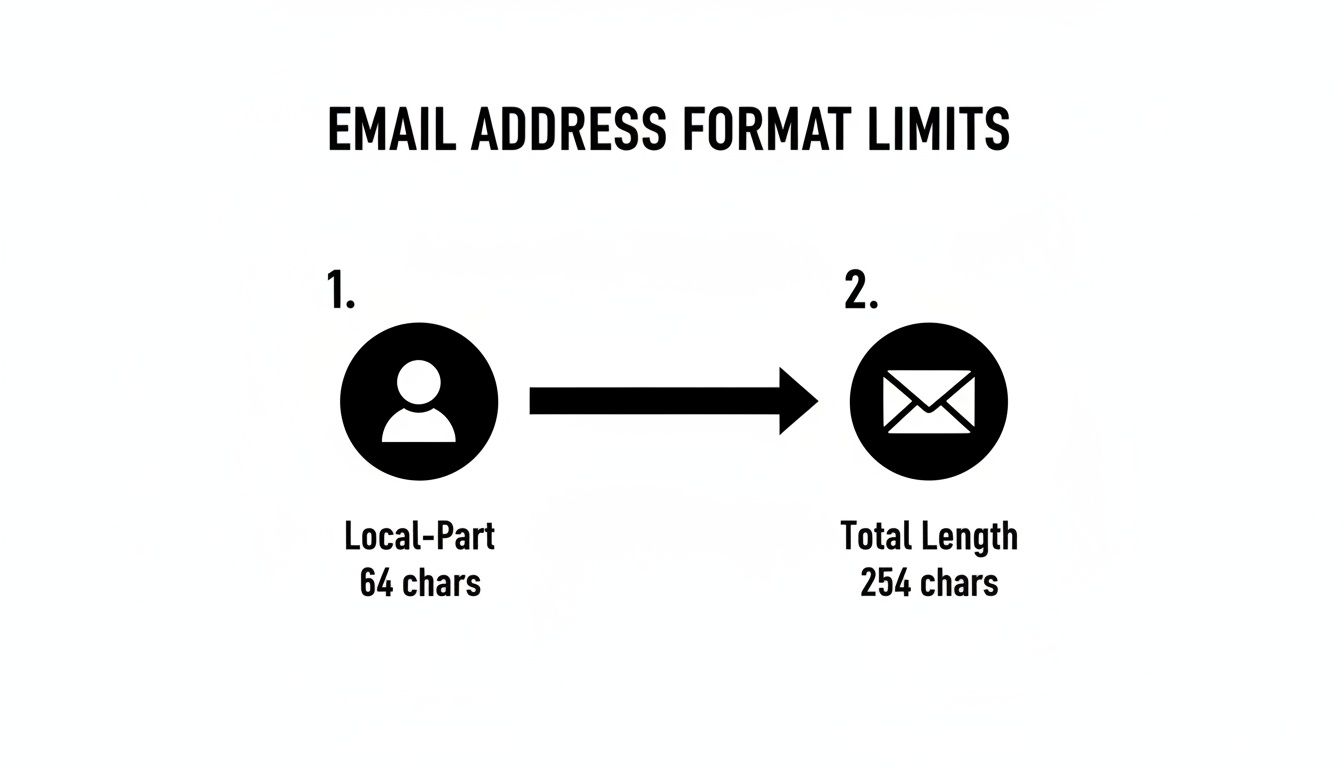
The RFC sets a hard limit of 64 characters for the local-part and 254 characters for the entire address. These are foundational rules that any robust validation system must follow. Using a dedicated service ensures you’re compliant with these and other complex standards, saving you development time and dramatically improving the quality of your data. For ongoing accuracy, consider setting up recurring validation so your lists stay clean automatically.
Preventing Common User Typos and Errors

Even if you’ve mastered every nuance of the official email format, all that knowledge can’t stop a simple typo from a user. Human error is just part of the game. The trick is to build systems that expect these mistakes and handle them gracefully, which boosts both your data quality and the user’s experience.
The most common culprit? Simple misspellings of popular domains. Just picture someone typing quickly on a tiny phone keyboard and ending up with john@gnail.com or jane@yaho.com. These little slips happen all the time and are a huge reason for bounced emails.
Accidental characters are another frequent issue. It’s easy for users to add extra spaces, commas, or other stray symbols, especially when they’re copying and pasting an address.
Strategies for Smart Error Handling
Instead of just showing a blunt “Invalid Email” error for a slightly off address, a much smarter approach is to gently guide the user toward the right answer. This small, helpful gesture can make a massive difference in reducing signup friction and keeping people from getting frustrated and leaving.
Here are a few effective ways to do this:
- Suggest Domain Corrections: If someone enters a domain that’s just a letter or two away from a big provider, offer a helpful nudge. A simple message like, “Did you mean gmail.com?” is infinitely more useful than a generic error.
- Automatic Input Trimming: You can fix a lot of problems behind the scenes. Automatically stripping leading or trailing whitespace from the input field is a dead-simple fix that works wonders without the user ever noticing.
- Real-Time Feedback: Give instant, friendly feedback as the user types. Highlighting the specific part of the address that looks wrong helps them fix it fast instead of making them guess what the problem is.
The goal is to be helpful, not a roadblock. By anticipating common typos like
gamil.comorhotmal.comand offering immediate, gentle corrections, you can dramatically improve the accuracy of the emails you collect and keep users moving forward.
Putting these proactive measures in place shows you care about creating a smooth experience. It turns a moment of potential frustration into a seamless interaction, ensuring far more valid emails actually make it into your system.
Answering Your Top Questions About Email Formats
Even after breaking down the rules, some specific questions always seem to come up. Let’s tackle some of the most common ones I hear.
Can an Email Address Start with a Number?
Yes, absolutely. An address like 123user@example.com is perfectly fine according to the official standards.
Pretty much any modern email provider or website form will have no problem with an email address that starts with a digit.
Are Uppercase Letters Allowed in an Email?
This is a classic “technically, yes, but practically, no” situation. According to the rulebook (RFC 5322), the part before the @ symbol can be case-sensitive. In theory, John.Smith@ and john.smith@ could be two different mailboxes.
In the real world, however, nearly every mail server on the planet treats them as the same to avoid massive confusion. The domain part, for the record, is always case-insensitive.
Best Practice: For all practical purposes, treat email addresses as if they are case-insensitive. A standard industry practice is to store them in lowercase to avoid creating duplicate accounts or causing delivery problems.
What Is the Longest Possible Email Address?
Believe it or not, there’s a hard limit. A full email address can be a maximum of 254 characters long. That includes the local-part, the @ symbol, and the domain name.
The local-part itself—the bit before the @—is capped at 64 characters.
Why Do Some Forms Reject Valid Emails?
This is a frustratingly common problem, and it almost always comes down to lazy validation. Many websites use an overly simple or outdated regular expression (regex) to check if an email “looks” right.
These simplistic checks often don’t account for perfectly valid, if less common, formats. You’ll see them choke on things like:
- Emails with a plus sign for tagging (
user+tag@example.com) - Addresses that use quotes in the local-part (
"jane doe"@example.com) - Emails with newer or less common top-level domains (TLDs)
Stop validating once and hoping for the best. Truelist’s recurring validation automatically re-checks your lists on a schedule — catching new bounces, dead mailboxes, and risky addresses before they damage your sender reputation. Pay-as-you-go credits that never expire, plus unlimited plans for high-volume senders.