Connecting your sequencer
Once a domain is active and has a mailbox, connect that mailbox to your sequencer with an SMTP/IMAP password generated from the domain page.
Set a password
Open the domain’s page and find the mailbox under Mailboxes. Click Set password.
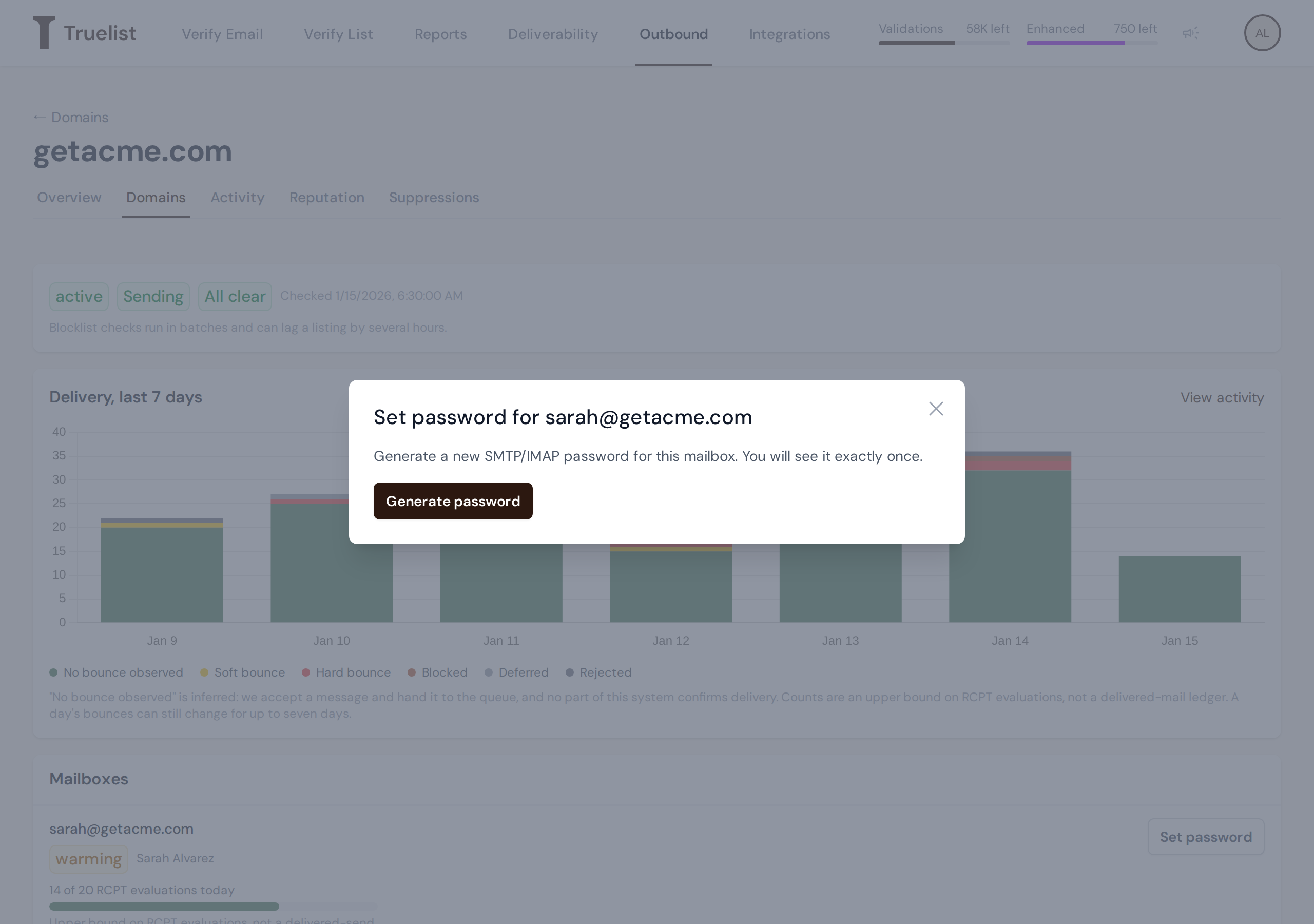
Click Generate password. The password is shown to you exactly once, right there in the dialog.
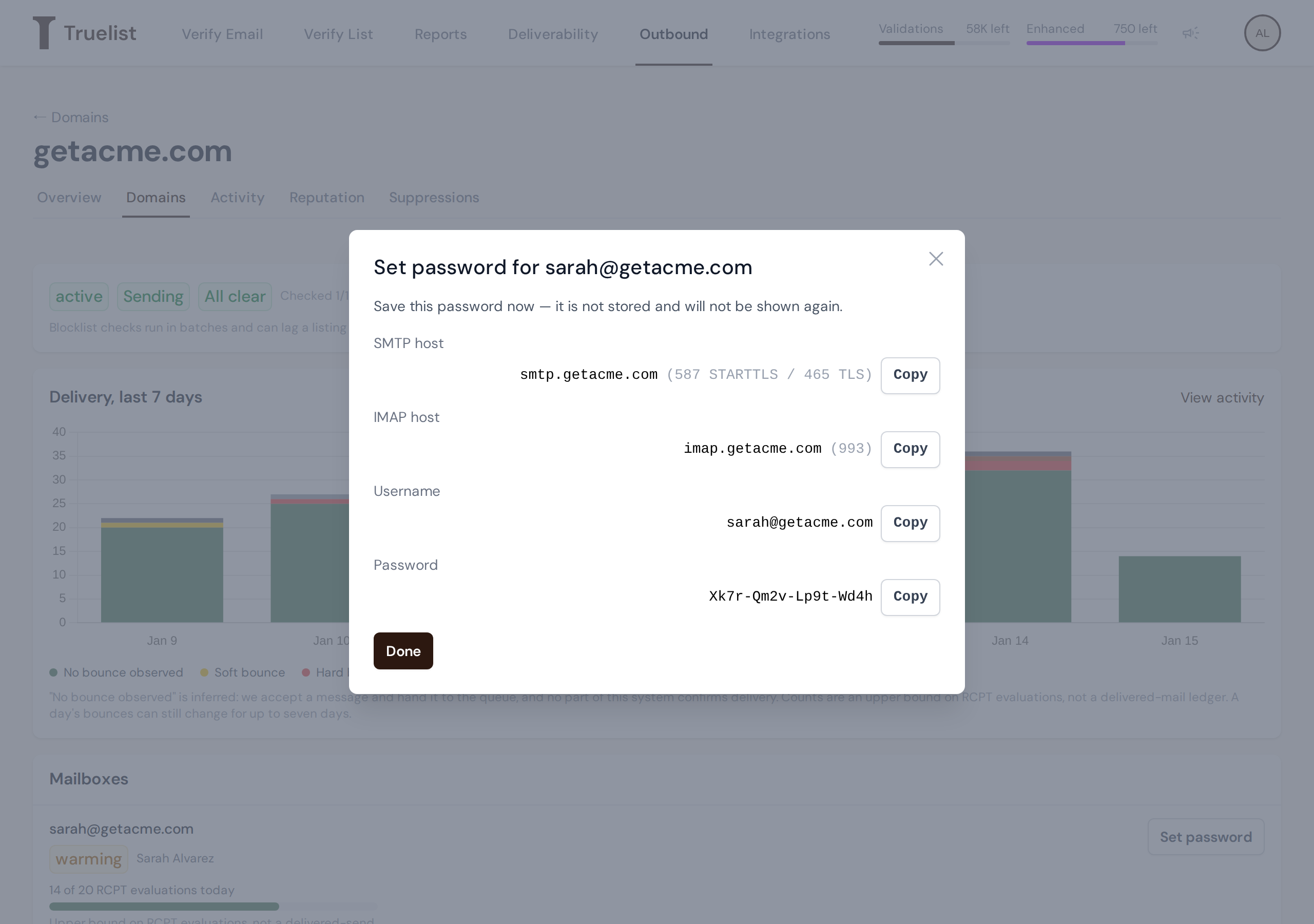
Warning
Save this password now. It is not stored anywhere and will not be shown again. If you lose it, generate a new one — doing so replaces the old password, so update your sequencer with the new one too.
Connection details
Each mailbox has its own credentials, scoped to its own domain:
| Setting | Value |
|---|---|
| SMTP host | smtp.<your-domain> |
| SMTP port | 587 with STARTTLS, or 465 with TLS |
| IMAP host | imap.<your-domain> |
| IMAP port | 993 |
| Username | The full mailbox address (e.g. sarah@getacme.com) |
| Password | The password you just generated |
Use the Copy button next to each field to copy it directly.
Adding the account to your sequencer
The exact steps vary by sequencer, but the general flow is the same in most tools:
- In your sequencer, find the option to add a new sending account or connect a mailbox via SMTP/IMAP (rather than connecting a mailbox provider like Google or Microsoft directly).
- Enter the SMTP host and port, then the username and password from above. Choose STARTTLS if you’re using port 587, or TLS if you’re using port 465.
- Enter the IMAP host and port (993) with the same username and password, so your sequencer can check for replies.
- Save and test the connection. Your sequencer should confirm it can send and receive through the mailbox.
Reply-To
Truelist has no Reply-To setting of its own, and it never sees or changes message headers — sending policy is applied before a message body exists. Set Reply-To in your sequencer if you want replies to go somewhere other than the sending mailbox. If you leave it unset, replies land in the sending mailbox itself, which your sequencer can collect over the IMAP connection above.
Set your sequencer’s daily limit
Set your sequencer’s daily sending limit for this mailbox at or below the mailbox’s current cap. See The sending ramp for the schedule and how to read the current cap.
Note
Caps are enforced on our end, not your sequencer’s. If your sequencer tries to send past the mailbox’s current daily cap, those sends are refused with a temporary error until the cap resets at midnight UTC. Keeping your sequencer’s limit at or below the cap avoids wasted sends and retry noise.