Finding an email
Email Finder looks up one person’s work email inside the Truelist app. It is available on current (v7) plans. Open Email Finder in the sidebar, or go to app.truelist.io/email-finder.
The examples on this page use a fictional person, Jonathan Smith.
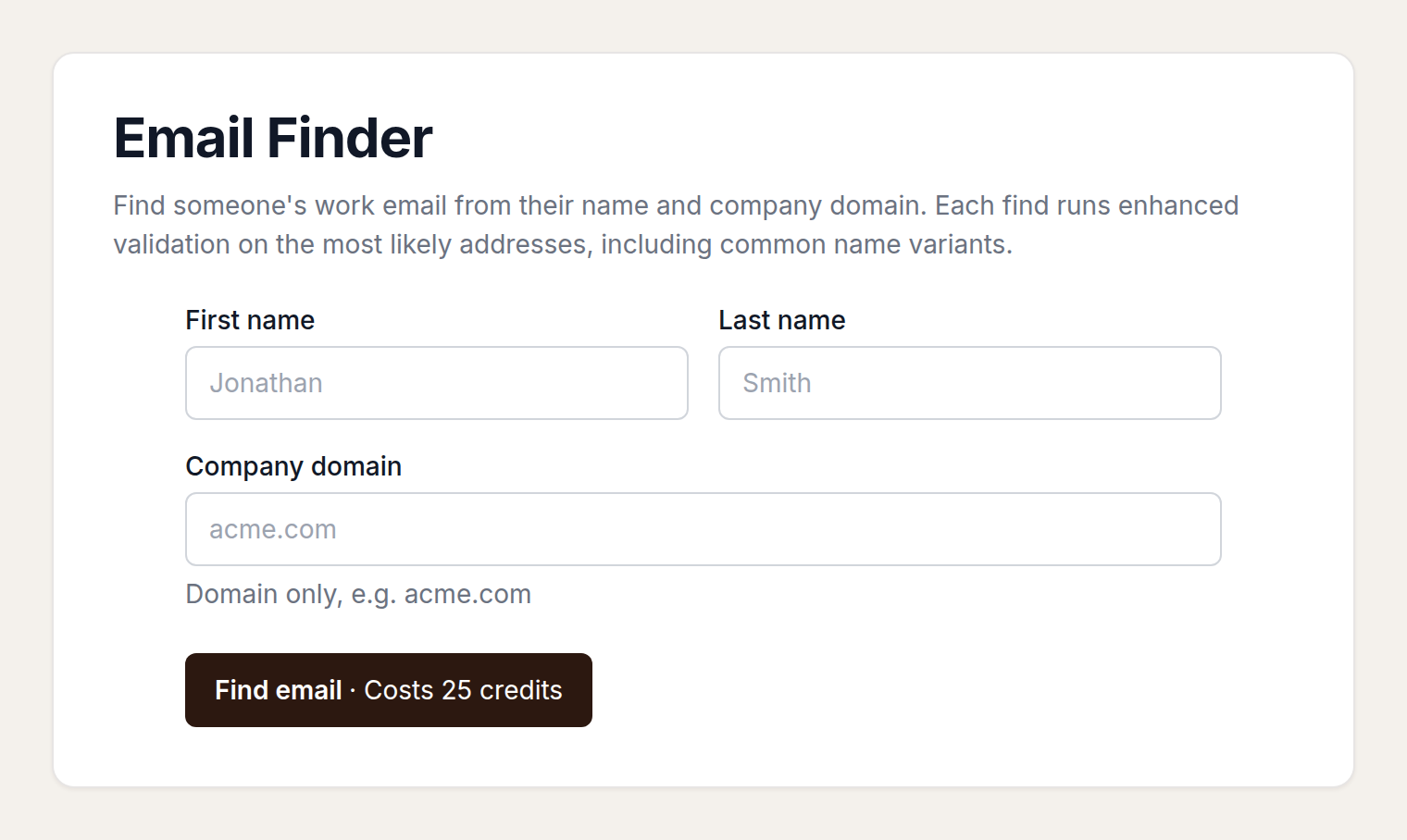
What you enter
Three fields, all required:
- First name
- Last name
- Company domain, the domain only, such as
acme.com
There is no company-name lookup. The domain hint in the form reads “Domain only, e.g. acme.com”.
The finder suggests name variants (for example nicknames such as Jon for Jonathan) and checks the most likely addresses. It runs deeper checks that resolve addresses standard validation can’t confirm, on up to 8 candidate addresses per find, and stops at the first verified address.
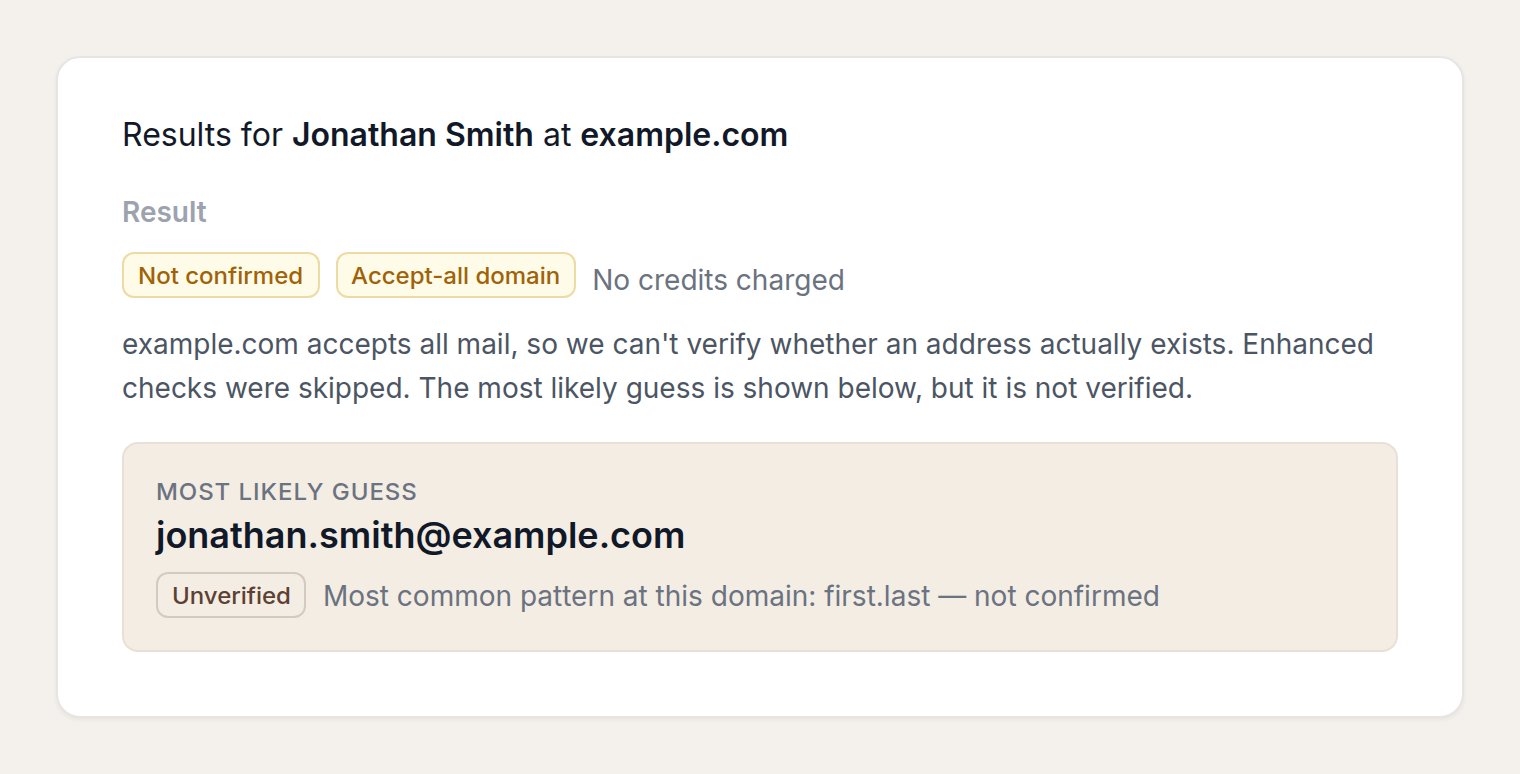
Only a verified address is shown as valid. An accept-all domain and a no-match are not presented as valid. An accept-all result may show a most likely guess marked Unverified. That guess is not a valid find.
Pricing
Email Finder uses the same credits as the rest of Truelist. Charges on the screen are in credits.
| Result | Credits |
|---|---|
| Verified address | 25 credits |
| No match | 25 credits |
| Accept-all (catch-all) domain | Free |
| No mail server | Free |
| Invalid input (a bad domain, for example) | Free. This is not a successful find. |
The button reads Find email · Costs 25 credits, because a verified result and a no-match both cost 25 credits.
Warning
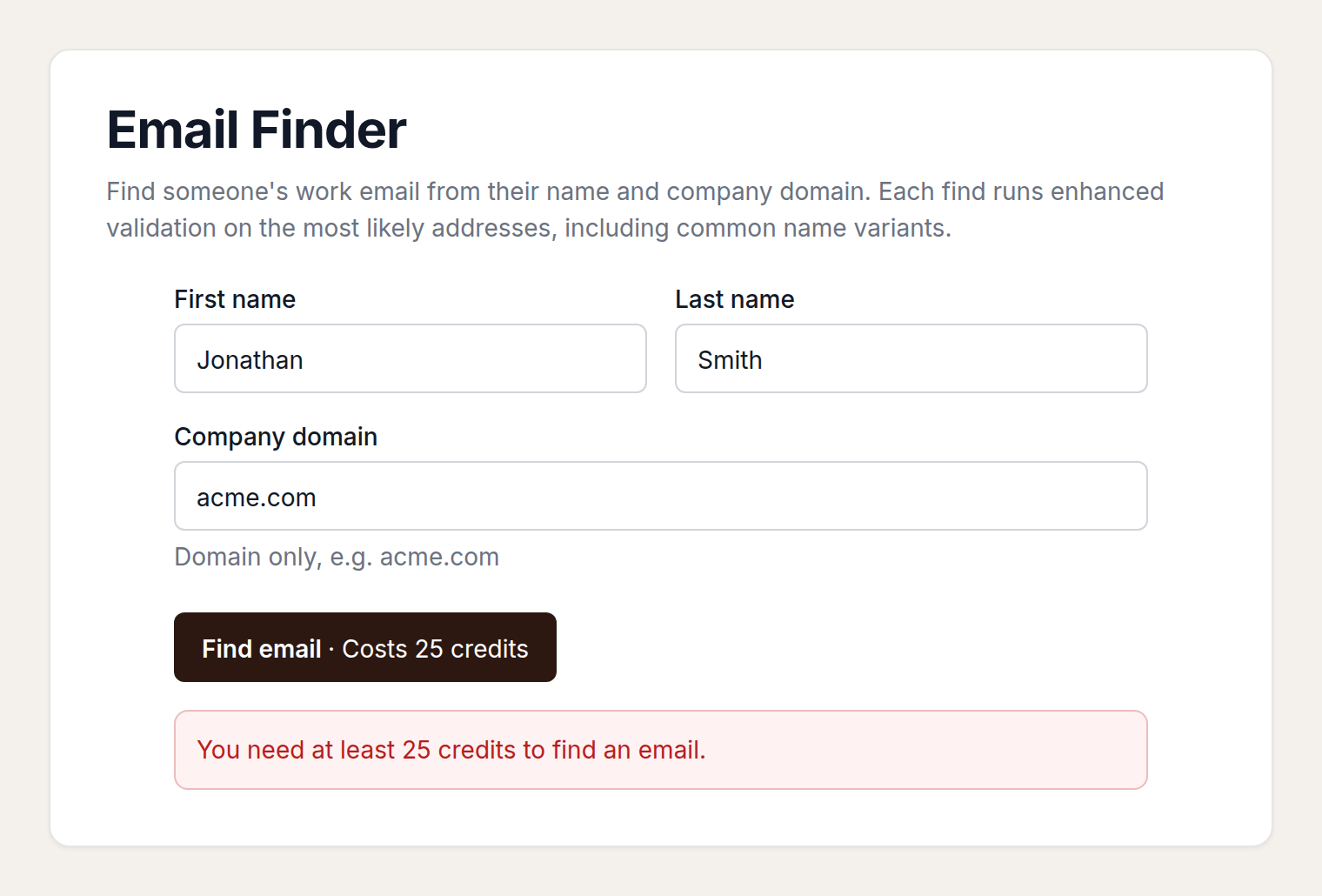
Accounts with fewer than 25 credits are blocked from searching. The app shows: “You need at least 25 credits to find an email.”
Who can use it
Email Finder is on current (v7) plans only. Older plans do not see Email Finder in the sidebar.
If the account is not on a current plan, the app shows: “Email Finder isn’t available on your plan.”
Results
Verified
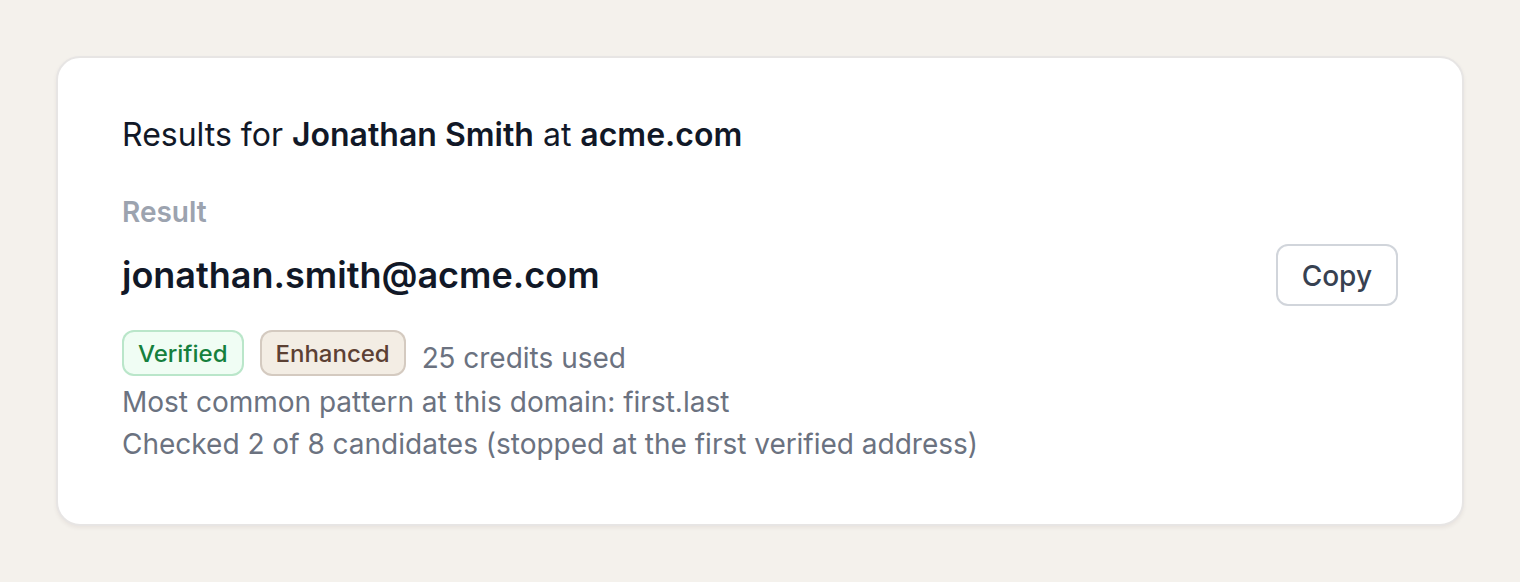
A confirmed address, with a button to copy it. The screen shows Verified, 25 credits used, and how many candidates were checked. The search may stop before 8. When it does, the line reads “Checked 2 of 8 candidates (stopped at the first verified address)” (the numbers depend on the search).
A verified or no-match result is also marked Enhanced. That means the search ran deeper checks that resolve addresses standard validation can’t confirm.
The screen may include the label “Most common pattern at this domain”.
No match
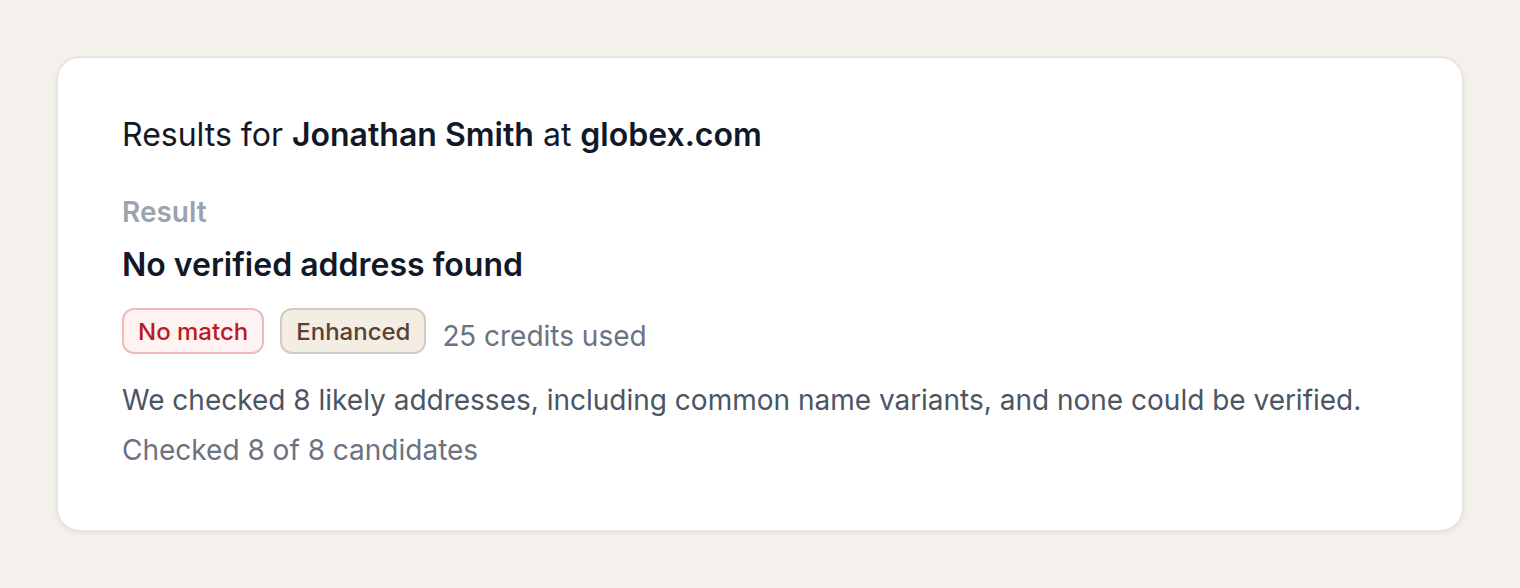
No verified address. The screen shows No match and 25 credits used, including when every candidate was checked. A no-match still costs 25 credits.
Not confirmed, accept-all domain
The domain accepts all mail, so an address cannot be confirmed. The screen shows Not confirmed and Accept-all domain, plus No credits charged, and says that enhanced checks were skipped. A most likely guess may appear, marked Unverified. That guess is not a valid find.
No mail server
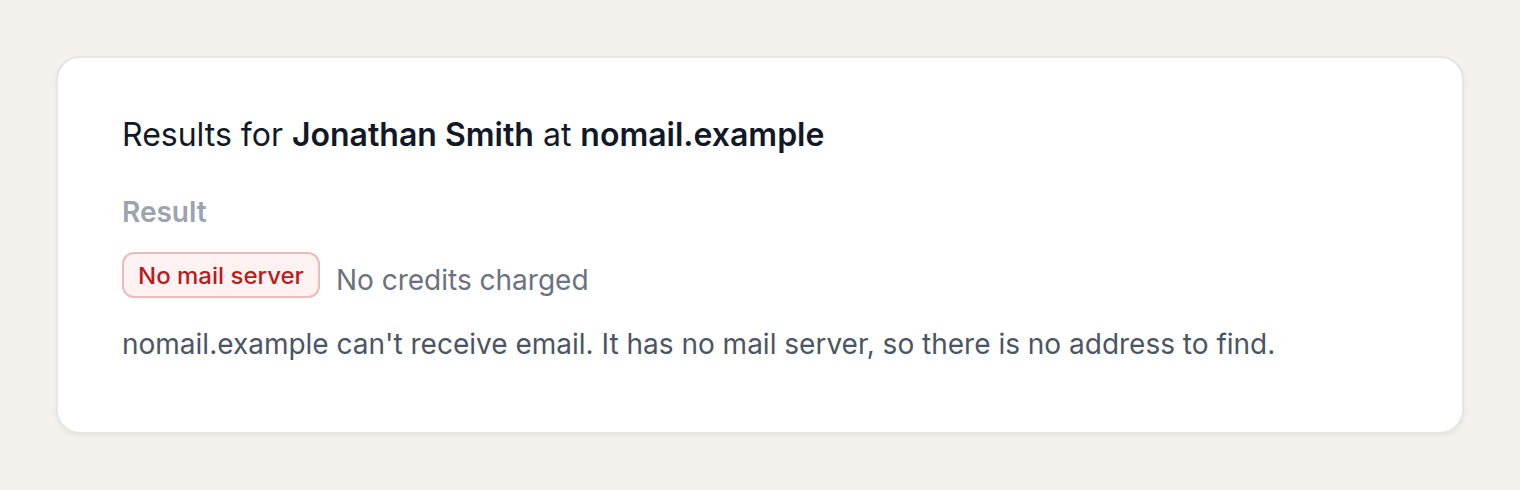
The domain has no mail server, so it cannot receive email and there is no address to find. The screen shows No mail server and No credits charged.
Messages you might see
Missing fields are caught in the form, before a search runs:
- “Enter a first name.”
- “Enter a last name.”
- “Enter a company domain.”
Other messages:
- Invalid input, such as a bad domain: “Check the first name, last name, and domain, then try again.”
- Fewer than 25 credits: “You need at least 25 credits to find an email.”
- Plan not eligible: “Email Finder isn’t available on your plan.”
- Unpaid account, or no payment method: “Add a payment method before using Email Finder.”
- Session expired: “Your session expired. Sign in again, then try once more.”
- Temporarily unavailable: “Email Finder isn’t available right now. Try again later.”
- Something else went wrong: “Something went wrong looking up that email. Please try again.”
Invalid input, an accept-all domain, and a domain with no mail server do not use credits. A verified result and a no-match do.
A different tool lives on the marketing site
The public page at /tools/email-finder is a separate, unauthenticated tool. It has different limits and different checks. It is not Email Finder in the app, and it is not billed at 25 credits.
List and single-address verification are covered in Verifying a list and Verifying a single email.
Bulk list building (a file of names and companies) is not part of Email Finder. The bulk finding waitlist is for that later product.